While business unit users are configured for access to automation assets, server users have the power to manage DocFusion configurations on the business unit, or for on-premises installations.
This guide has several sections that help you to add, delete and update DocFusion server users.
Server User Maintenance Operations
> First, connect to your DocFusion server
Open WorkBench and login. Now, select a Server Node in the Workbench Items pane then click Manage in the Repository menu. The Server URI dialog opens.
.png)
Select an existing server URI (Universal Resource Indicator) from the dropdown or enter a new one. The URI is the location of the DocFusion instance you will be maintaining users on.
Click Connect. You will be prompted to enter your login credentials.
Once you have logged-in successfully, the Manage Server console opens. It lists the business units on your server.
Now, locate the section of this guide below with the instructions relevant to the user operation you would like to perform.
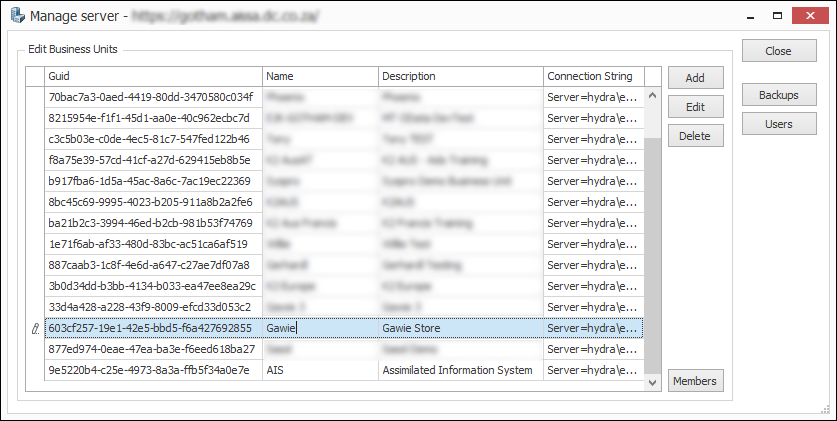 Manage Serve Console
> Creating users
In the Manage Server console, click the Users button. The User Security window opens. Click Add.
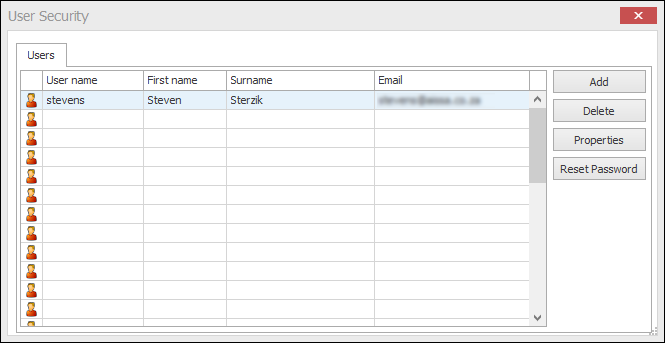 Maintain the user list using the commands on the right
Now, capture the user's profile details in the User Properties dialog. You will need a username, firstname and surname, and their email address.
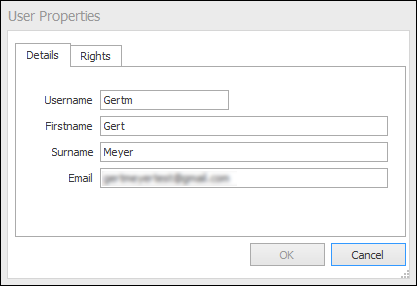
Next, set account permissions for the user profile by navigating to the Rights tab. Use the checkboxes to enroll the user in relevant permission groups.
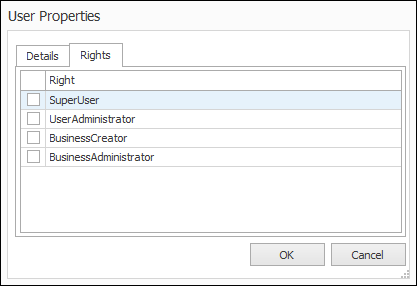
Clicking OK dismisses the User Properties dialog and creates the user profile. You can now add the user to a business unit. We'll do that next.
> Adding users to business units
In the Manage Server window, select the Business Unit you want the user to be assigned to.
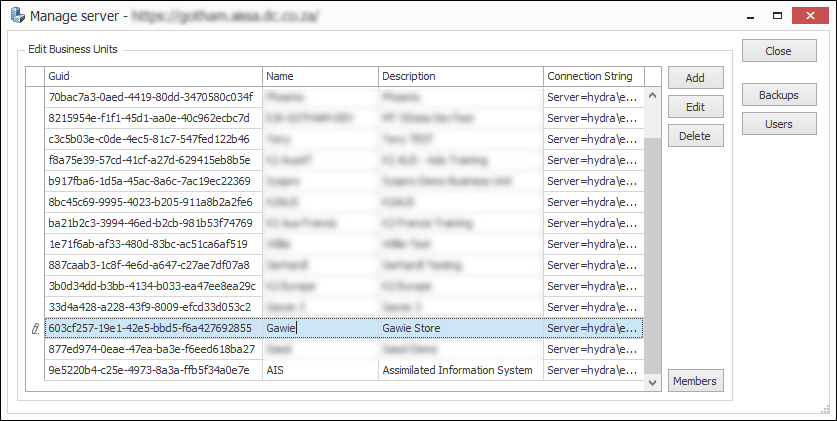
Now, click the Members button. You will be presented with a list of all users that belong to the selected business unit. Add the user you created by selecting the checkbox alongside the profile. Clicking OK dismisses the dialog and completes the operation.
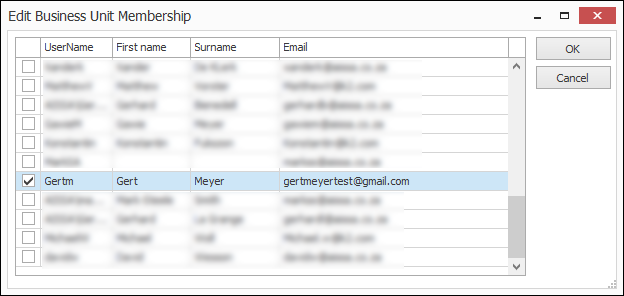
Add multiple users to a business unit using the checkboxes.

> Deleting users
In the Manage Server console, select a Business Unit and click the Users button. The User Security window opens with a list of users for the selected business unit.
Scan the list for the user profile you wish to delete, then click Delete.
Maintain the user list using the commands on the right