The Security Manager in DocFusion Workbench manages user access to a business unit and how authentication is performed. If you have an on-premises installation of DocFusion, and want to manage server users instead, please refer to this guide.
This guide provides instructions for common user maintenance tasks and how to enable Microsoft AAD (Azure Active Directory) logins for any user.
To enable AAD logins for DocFusion Online users, please contact support. For DocFusion On-Premises, you will need to also configure AAD for IDS on Azure. Follow this guide...

User Maintenance Operations
> First, open Business Unit Security
In the Workbench Items pane, select the Business Unit to add a user to, then click the Security command in the Repository menu. This opens the Business Unit Security window.
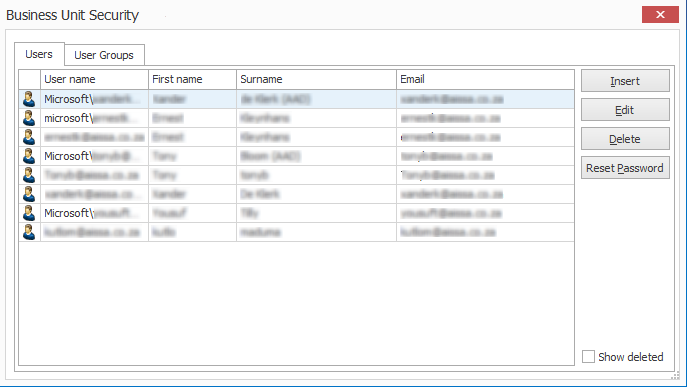 Perform a range of user maintenance tasks using Business Unit Security
> To create users:
Follow these steps to add business unit users:
1. Begin by adding user credentials
Click Insert. The dialog that opens allows you to capture the user's details. You'll need to provide:
- a Username,
- First name,
- Surname,
- and email address.
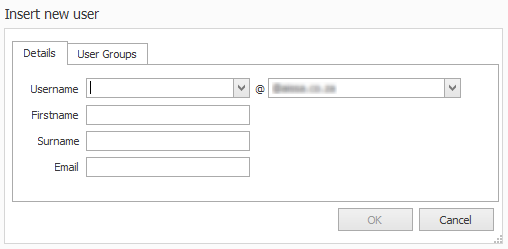
Note the @domain dropdown alongside the Username field. It adds an authentication domain, which we will configure next.
2. Next, select the user's authentication domain
The dropdown alongside the Username field lists whitelisted domains, and specifying the domain allows you to configure whether a user will be authenticated locally or using their Microsoft account.
To authenticate locally, select the domain configured for your business unit from the dropdown list.
Alternatively, to allow the user to login using their Microsoft credentials, select 'Microsoft\' from the list. If you don't see 'Microsoft\' in the list, use this guide to add it as a whitelisted domain.
Users who are configured to authenticate using their Microsoft accounts have the prefix 'Microsoft\' in the list of users in the Business Security Manager window.
Click OK to save the user and return to the Business Unit Security manager.
> To delete users:
Scan the list of users in Business Security Manager to find the user to delete.
Select the profile and click Delete.
A record of deleted users can be found by enabling the Show Deleted checkbox in Business Security Manager.
> To update user profiles:
Scan the list of users in Business Security Manager to find the user profile to update.
Select the profile and click Edit. The User Profile dialog opens.
Profile details can be updated on the Details tab, and updates to the user's groups can be made on the User Group tab.
Remember to notify users of any updates that affect their login or permissions.