User groups in DocFusion help you to simplify the application of permissions for all users of DocFusion. These permissions essentially control access to automation assets and functionality in DocFusion, whether users are business unit or server power users.
This guide contains several sections that help you to maintain DocFusion users.
User Group Maintenance Operations
> First, open Business Unit Security
In the Workbench Items pane, select the Business Unit to maintain user-groups on, then click the Security command in the Repository menu. This opens the Business Unit Security window.
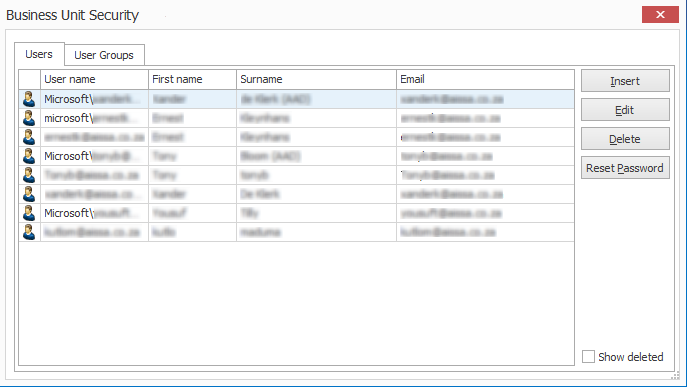 Perform a range of user maintenance tasks using Business Unit Security
> To create user groups:
Navigate to the User Groups tab. You will be presented with a list of existing user groups.
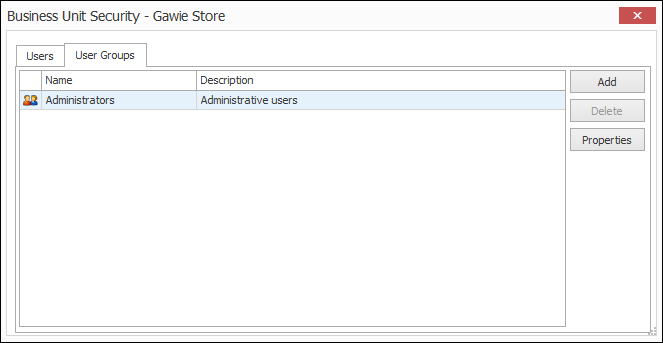
Now, click Add to create a new one. The User-Group Properties dialog opens.
First, name and describe the user-group using the respective input fields on the Details tab.
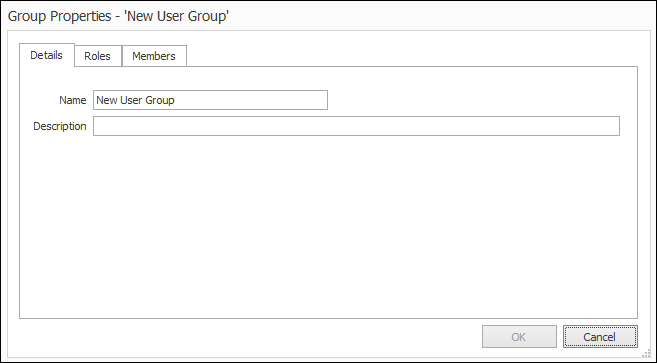
Now, navigate to the Roles tab. Here, set the permission rights that will be assigned to all members of the group.
Lastly, select the users who will be members of the user-group by navigating to the Members tab.
Click on OK to save your changes and dismiss the dialog.
> Updating user groups
In the Business Unit Security window, navigate to the User Groups tab.
Select the user group that you want to update and then click Properties. The Group Properties window opens. Edit the details as needed.
Click on OK to save your changes and dismiss the dialog.
Add multiple users to a business unit using the checkboxes.

> Deleting user groups
In the Business Unit Security window, navigate to the User Groups tab.
Select the user group that you want to delete and then click Delete. The user group will be removed.
Click on OK to save your changes and dismiss the dialog.