Domain whitelists in DocFusion adds to your security by filtering out unauthorized traffic. For instance, a common application for whitelisted domains is authentication, where only users from allowed domains can login to DocFusion. When whitelisting domains in DocFusion, the configuration is completed on the server security level and will apply to all business units.
Follow the steps in this guide to whitelist domains using DocFusion WorkBench.
Steps
Open Workbench and logon. Then, navigate to the Repository menu and click Manage. The Server URI dialog opens.

Type in the URI (Universal Resource Indicator) of your DocFusion server. Use the dropdown to access URI's you've connected to before. Now, click Connect. You may be prompted to enter your login details if you aren't logged-in yet.
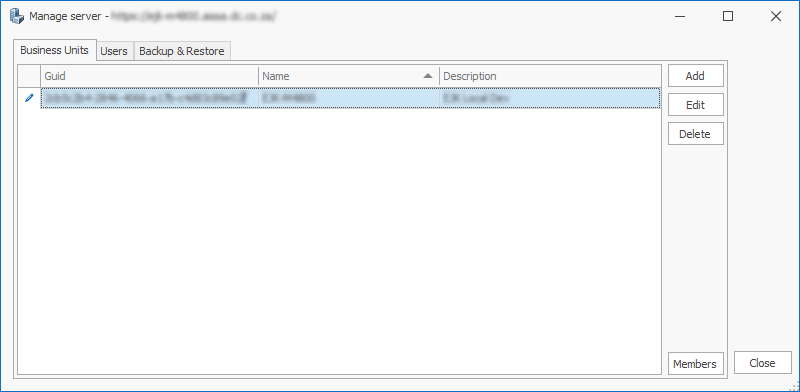
When the Management window opens, navigate to the Business Units tab and select a business unit to add an email domain to. Now, click Edit. This opens the Business Unit Properties dialog.
Scan the Business Unit Properties dialog for the Email Domains setting. To add a whitelisted email domain click the Add button alongside. The domains you add will be selectable as email domains when creating business unit users.
If you are configuring Azure Active Directory Services (AAD) for DocFusion then add 'Microsoft\' to allow users to login using their Microsoft credentials.

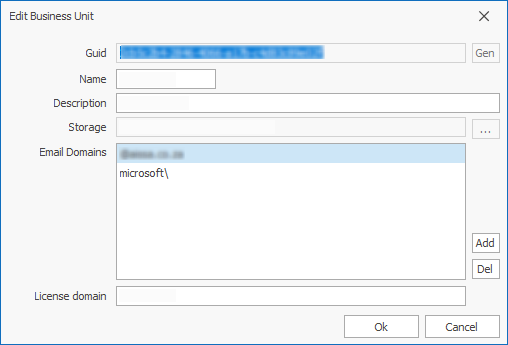
Click Ok to dismiss the Properties dialog.