The Schema Properties tool manages properties in your template's data model. Properties are the basic definitions of variable data that is made available for use in document templates. They are defined by:
- Names and Descriptions: unique String values that help to identify and describe a property's usage.
- Data Types: Native (integer, boolean, etc.) or custom data (schema's, entities, etc.) definitions for the data expected from connected data sources,
- Data Occurrences: How the data will be used in your template; as a single value or as a complex data structure such as tabular data (multiple),
- Data Strategy: Configurations of the output (return value) in templates.
- Generator Type: Specifies how scenario data should be generated for a property. This setting is an override since, by default, DocFuson infers the generator type from the property name.
This guide helps you access the schema properties and use its tools to manage their configurations.
Accessing Schema Properties
Click Data Model in the Template Designer ribbon bar. When the Data Model pane opens, select an Entity to manage and then click Edit Entity in the toolbar. This opens the selected Entity Properties window.
Using the toolbar, you can now:
- Add, update and delete properties,
- Copy the configuration of existing properties to create new ones,
- Set a property's data strategy as optional.
Below the toolbar is a tabular listing of all properties for the selected schema with their associated settings.
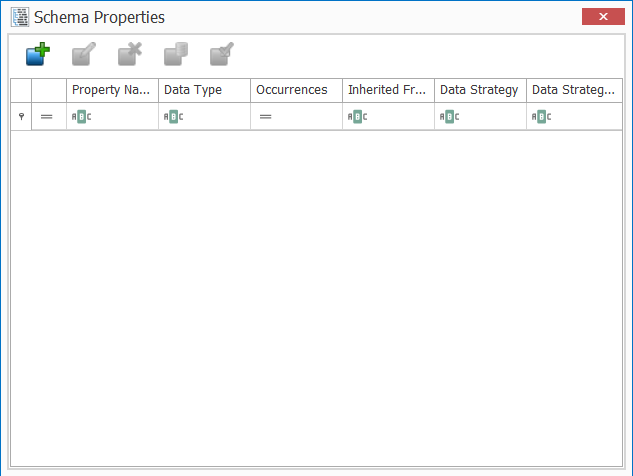 Schema Properties window
Adding properties
To add a new schema property, click Add Property in the toolbar. The Create Property dialog opens.
Now, configure the property as follows:
- Provide a unique Name for the property and use the description field to record its usage in the template.
- Select the Data Type from the dropdown. Available options include native and complex data types (schema, any, etc.).
- Set the Occurrences. Options are Single and Multiple, which configures the property as a single data fields or tabular data respectively.
- Select the Data Strategy, or the return value's configuration.
- Enable the Is Entity Descriptor checkbox if this property is a complex type that contains more properties, like a schema.
- Optionally, override the default Generator Type by specifying one for the property.
Click Save to add the property and return to Schema Properties window. Repeat the process to continue adding properties.
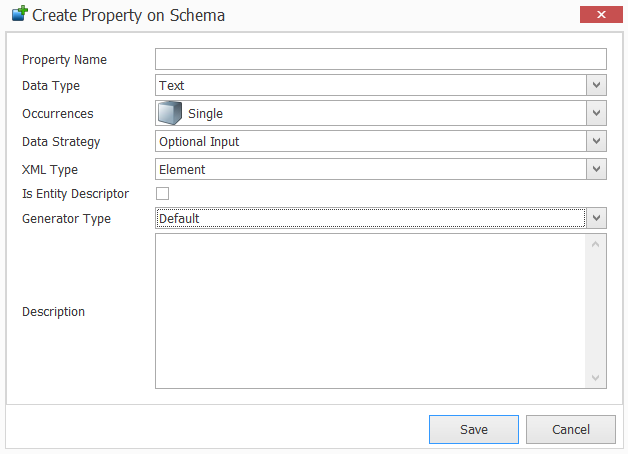 Add Property dialog
Updating properties
To update an existing property, select it from the list in the Schema Properties window and click Edit Property in the toolbar. The configuration dialog opens. It reflects the same configuration settings as the Add Property dialog above.
Clicking Save updates the property with any changes and returns you to the Schema Properties window.
Deleting properties
Select a property from the Schema Properties, then click Delete in the toolbar. DocFusion will prompt you to confirm the operation. If you click Yes, the selected property will be permanently deleted.