Queries can be used to source real-time data that accurately tests a business case for a document template. When a query is assigned to a scenario, the dataset returned from the query is used to generate the document and verify that the template is working correctly. Using queried datasets that accurately reflect a business case also tests the efficacy of a document template in relation to the dataset.
To do this:
Create a query
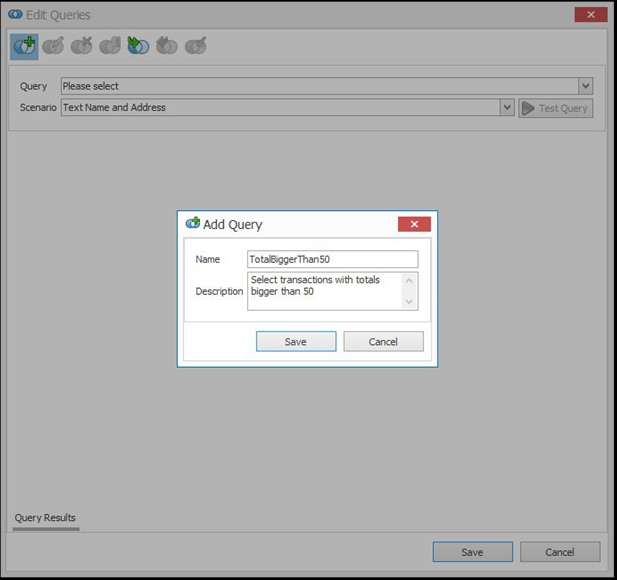
First, open the Query Editor and add a new query using the toolbar. Name and optionally describe the new query when the dialog box opens, then click save.
The newly added query now appears selected in the Query dropdown field, and a framework of the query statement is added to the Editor pane.
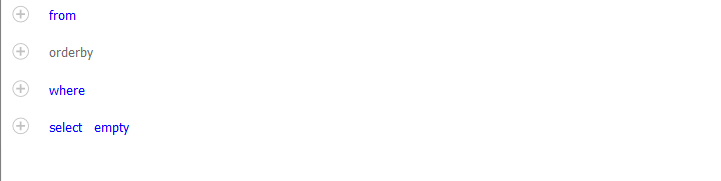
Define the From criteria
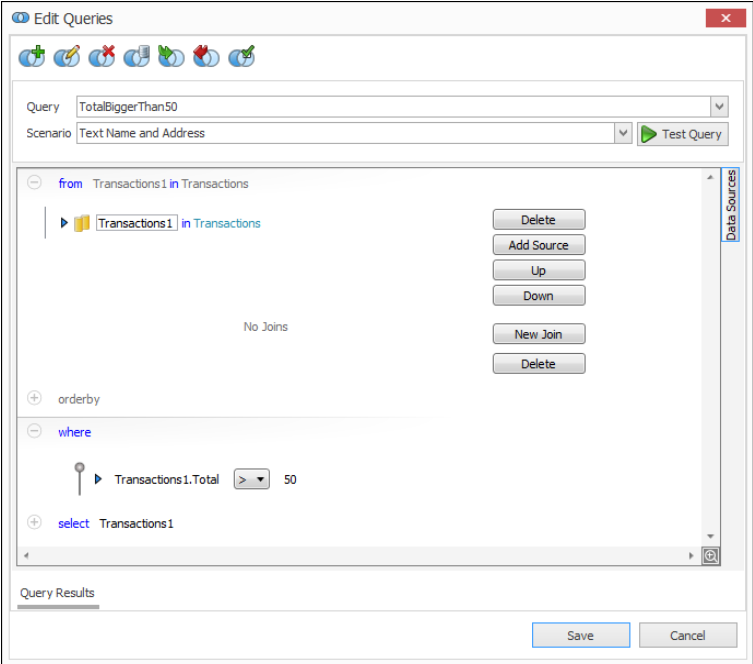
Next, expand the From clause using the plus (+) sign and click Add Source. This opens the data model dialog, which lists data sources in the template's data model.
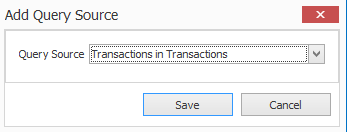
Select a data source, then click OK to return to the Query Editor. Making a source selection builds the From clause of the query statement. It can be customized.
The query has now been associated to an entity in the template's data model.

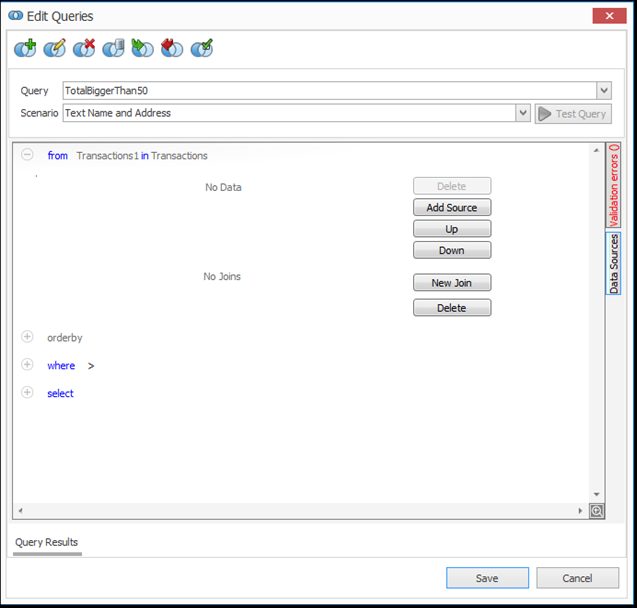
Configure the Where clause
Click on the Where clause to expand its configuration. Alternatively, click the plus (+) sign alongside Where to expand the configuration.
Click the circle (grey) to open the context menu and select Add Comparison. This adds an empty comparison clause to the Where configuration.

There are three parts to the where clause that can be customized:
- The field, which is the data field from the template's data source that you want to compare against.
- The operator defines the type of comparison to perform.
- The value specifies the value that the field (1) will be compared to.
Click on each to customize them accordingly.
Optionally, select a scenario
Associating the query to a scenario allows you generate the document from the dataset returned from the query. This helps to test whether the template is working correctly.
You will need to have created a scenario already to select one from the Scenario dropdown. To create a new one, open the Scenario Editor from the DocFusion ribbon bar.
Test the query
Click Test Query to execute the query. The Query Results pane opens to display the results.
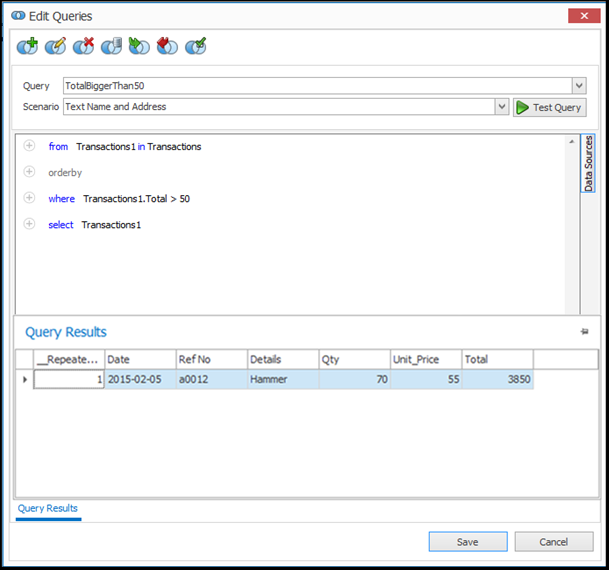
You can now use this dataset by mapping it to an entity in the template's data source.