Queries in DocFusion are used to create filtered data sources that can be assigned to smart parts. It is a template design-time tool which visually builds structured query language (SQL) statements to retrieve datasets for generated documents. The data returned from queries can also be associated to existing Scenarios that have been added to the document template to test the query. All these functionalities are accessed using the Query Editor.
Accessing the Query Editor
To open the Query Editor, click Queries in the View section of the DocFusion ribbon bar.
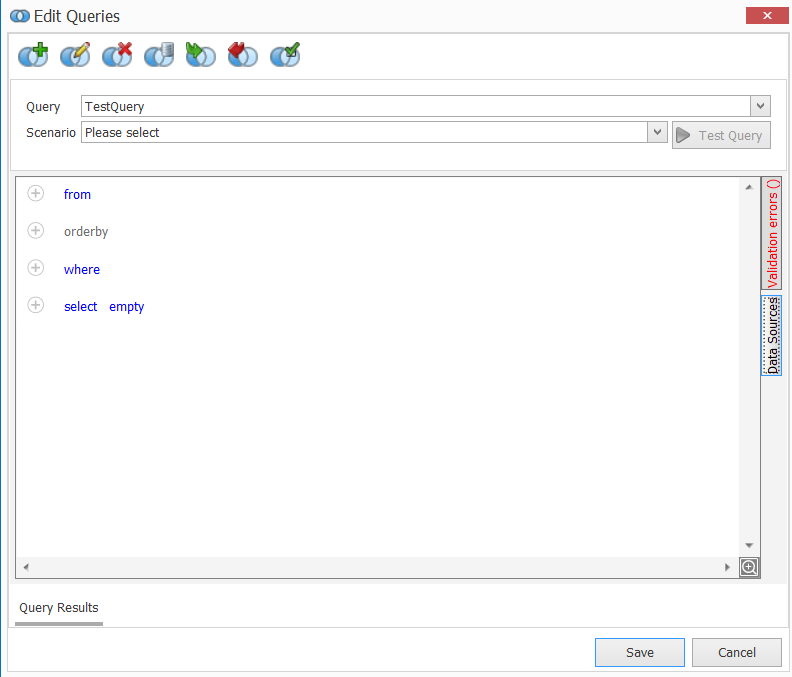
Toolbar & Selectors
Commands in the toolbar help to manage data retrieval from connected data sources. Available commands are:
- Add Query: Creates a new query to retrieve a dataset. The query can also be named for reference later.
- Edit and Delete Queries: Updates or removes existing queries.
- Copy Query: Copies all the clauses of a selected query to a new one.
- Import and Export Queries: Use saved queries as data sources in the template, or save an existing query for later use.
- Show Query Usages: Show where the results of a query is used in the template.

Existing queries that are available to the template can be accessed using the Query dropdown. Making a selection loads the query in the Editor Pane.
Similarly, existing scenarios that have been added to the template can be accessed using the Scenario dropdown. They are used to test a selected query, which is initiated by clicking the Test Query button.
Testing queries using a scenario is optional. Queries can be tested independently, and their results can be viewed in the Query Results pane below the Editor pane.

Editor Pane
The main area of the Query Editor window is used to build query statements and its clauses. They are constructed in the form of structured query language (SQL) statements to filter results and order them. Clicking the plus sign (+) alongside each clause allows you add and customize the query criteria.
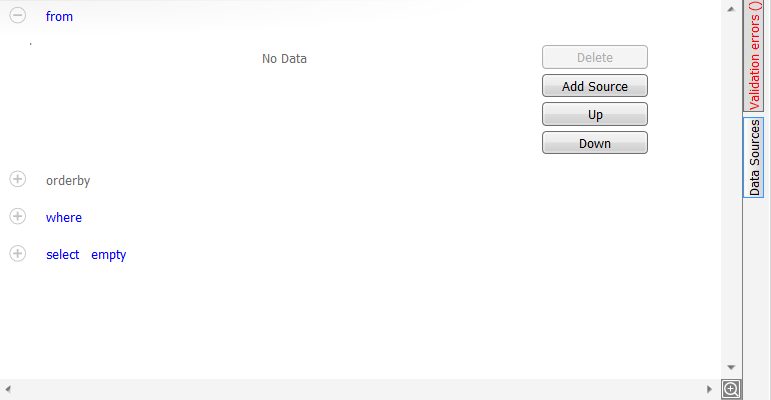
Alongside the right edge of the Editor pane are two panels that help to construct queries:
- Data Sources: Allows you to select entities from the template's schema to use in the query.
- Validation Errors: Displays any syntax or other errors in the query statement.
The Save and Cancel buttons at the bottom of the Query Editor commit or dispense with your changes.
Query Results Pane
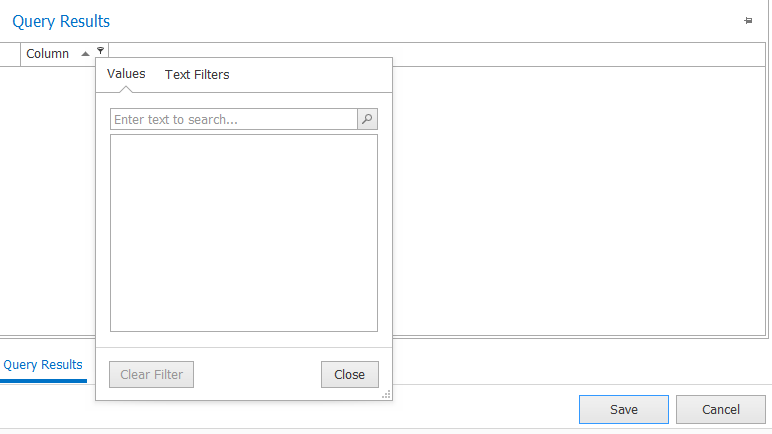
Once a query has been built, click the Test Query button to fetch the results. The resulting dataset can be viewed in the Query Results pane below the Editor pane.
Clicking the column names allows you to order by the results of a column, and clicking the arrow alongside the column name opens the filter dialogue for the dataset.
Dock the result pane by clicking the pin in the right of the header bar.