Queries in DocFusion return tabular data, and the resulting dataset can be mapped to Repeater smart parts in the document template. This allows you to include the results of queries in generated documents.
To map the results of a query using a Repeater smart part:
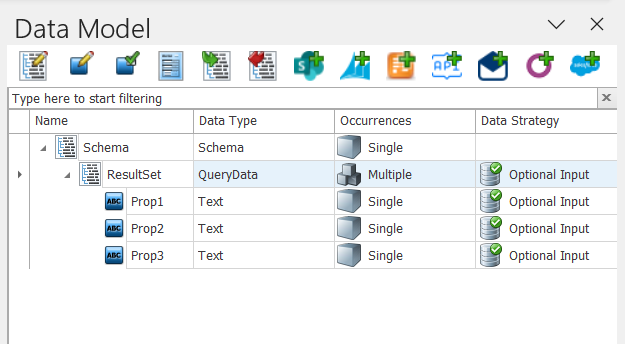
Create a Multiple Occurrence property
Tabular data returned from queries require a Multiple Occurences property in the template's schema. If you don't have one already, create it first.
For guidance on creating a Multiple Occurrence property, refer to the guide: Working with schema properties.

The number of data fields that you add to the multiple occurrences property doesn't need to match the columns in the dataset returned from the query since DocFusion allows you to choose which fields to map to the data source.
Add the Repeater
With the Data Model pane open, drag the Multiple Occurrences entity you created onto the document canvas. This creates a Repeater smart part for you in the template and the table is based on the schema entity, with a column for each data field.
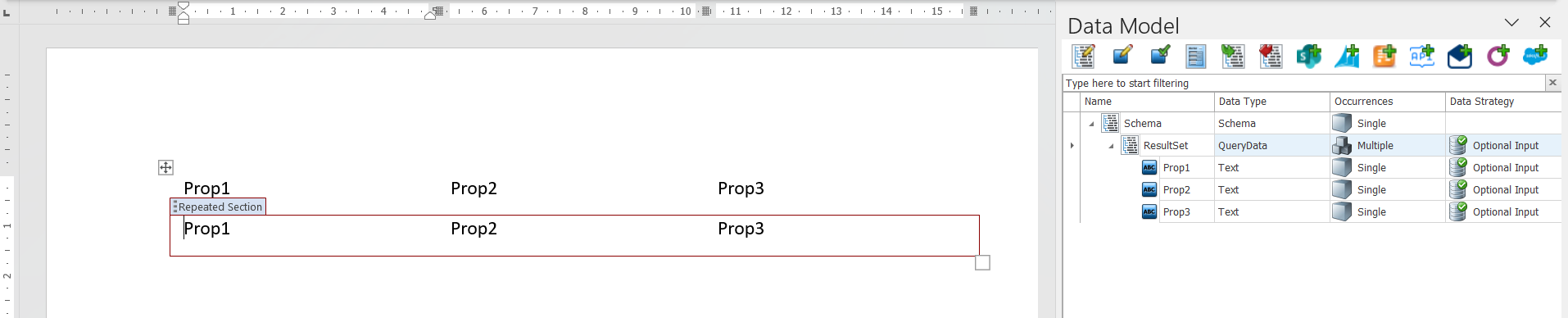
Optionally, use Microsoft Word’s Table Design tools to format the table.
Re-assign the mappings
By default, the Repeater smart part is mapped to the schema entity that you dragged onto the document canvas. The mapping needs to be re-assigned to the results of a query that you created using the Query Editor.
To re-assign the mapping, open the Mappings tool from the View section of the DocFusion ribbon bar. Now, in the list, locate the Repeater smart part and its properties.
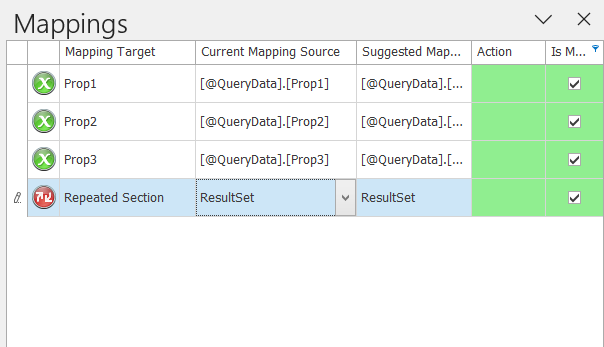
First, map the Repeater to the Query:
In the Current Mapping Source column for the repeater, click the dropdown to open the Mapping Options. DocFusion suggests mappings for you, but click the Manual Mapping tab to navigate to the list of queries saved to the template.
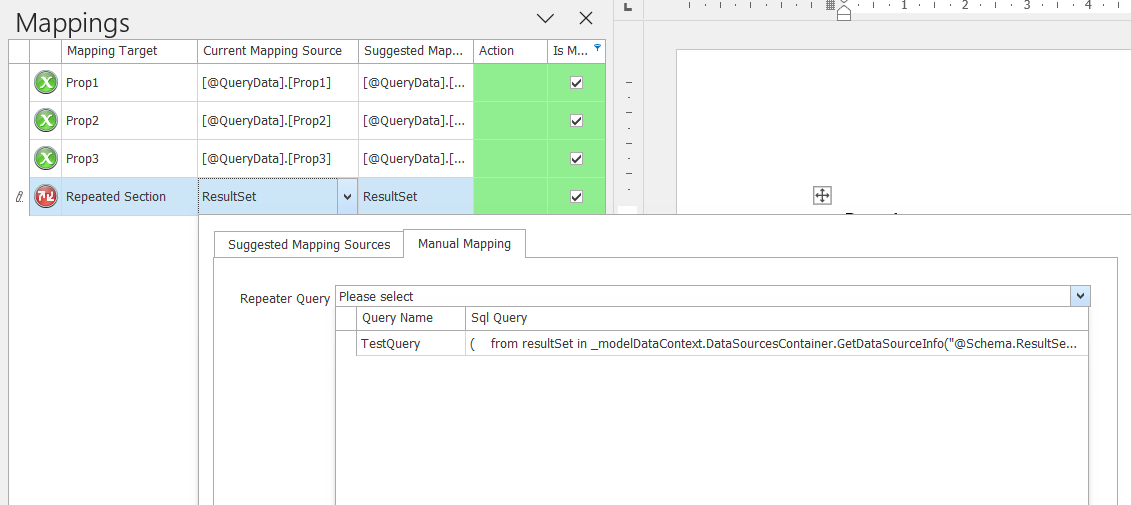
Select the query from this dropdown list to assign its resultset to the Repeater smart part.
Now, map the Repeater's properties to the query data:
For each of the property in the Repeater, click the dropdown to open the Mapping Options and re-assign the mapping to the query fields.
Preview the template
To test your document template, use the Preview command in the DocFusion ribbon bar. Optionally, test the query using specific scenarios that were created for the dataset.
When the generated document opens, verify that the data that was sourced from the query you selected.