The Restore function allows you to revert any automation asset to one of its previous states. It's useful when you have unwanted changes to files, and any made between the current and restored versions can be rolled back. The restored version of the file then becomes the current version. You can then work with it as you would with any other asset in Workbench.
If you do make changes to a restored file, and then check it back in, Workbench creates a new version of the file that constitutes the latest version. Once again, these changes are tracked and can again be reverted again. Because Workbench maintains a full history of changes to automation assets, it ensures that no work is lost.
Follow these steps to restore a previous version of any automation asset in Workbench:
Check the file out
In Workbench, navigate to the asset that you would like to restore.
Once selected, ensure that it is checked-out. If not, click Check-out in the Items menu. This opens the wizard which will guide you through the process.
Need help checking the file out? Try this guide...

Once the file has been checked-out of version control, proceed with the next step to restore a previous version.
Restore a previous version
With the file selected in the Asset pane, click History in the Items menu. The Version History window opens.
The Version History window lists all recorded versions of the file, along with their checked-in dates and the users who worked on each version. You can also identify each version using the given labels and descriptions.
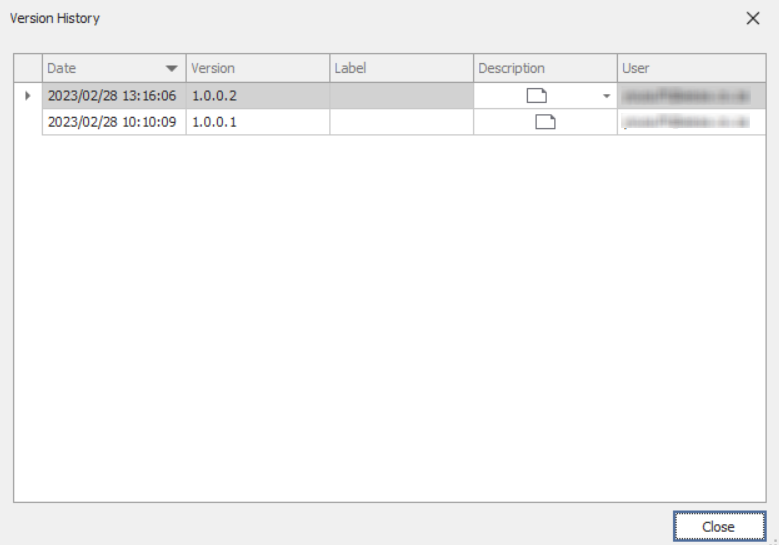
From the list, select a version of the file to revert to, then click Restore. This completes the operation and dismisses the Version History window. No confirmation is required.
The Restore button is only visible for assets that have been checked out. If it's not visible, return to the previous step to check the file out.
Check the asset back in
Once restored, you can work with the restored version of the asset. Irrespective of whether you have made changes to the asset or not, checking the file back in to version control keeps it current for all users.
To do so, select the file in Workbench, and then click Check-in in the Items menu.
Need help checking the file back in? Try this guide...