Using existing templates as a basis for new ones allows you to quickly transfer data models, smart parts and other DocFusion functionality. Follow the steps below to accomplish this:
First, create a local copy
In Workbench, locate the template that you want to base a new template on.
Now, drag-and-drop the template to any local repository. This effectively makes a local copy of the template.
To register a local repository, follow these steps...

When you drop the file, the wizard opens to guide the copy process.
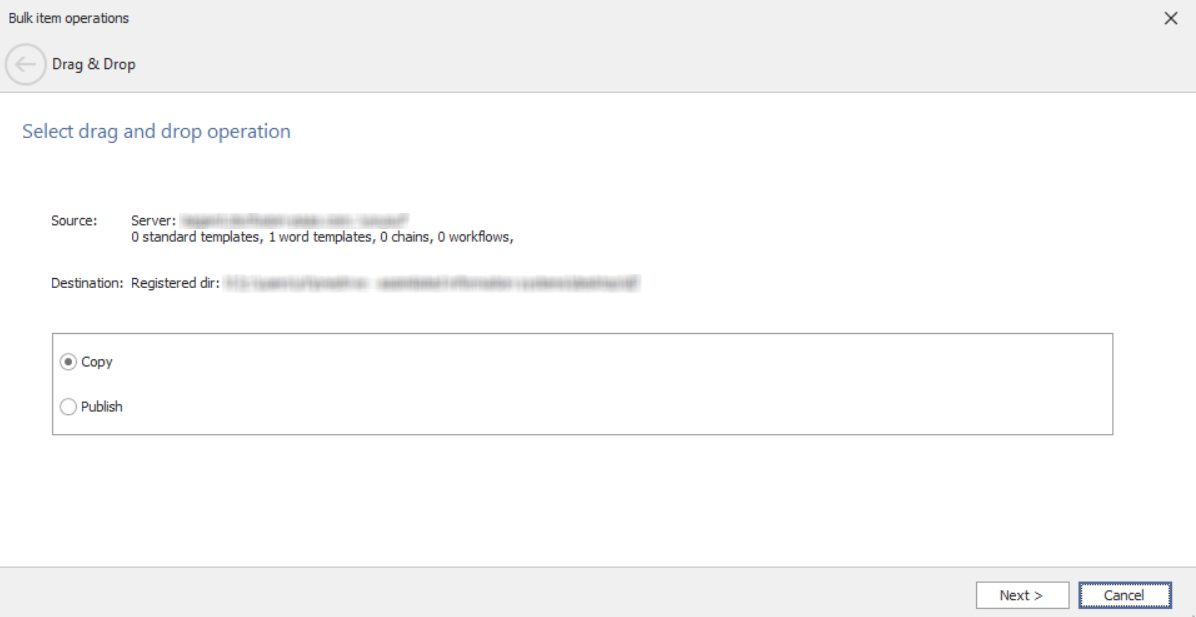
Verify the source and destination locations, as well as the type of assets to include in the copy operation.
Next, select Copy from the drag-and-drop options. This instructs the wizard what operation to perform.
Click Next. You will be asked to verify the copy operation and resolve any errors. If there aren't any, click Next to advance the wizard again.
When the copy completes, click Finish to dismiss the wizard and proceed with the next step.
Optionally, make changes
Make any changes that you want to the template by editing it in Template Designer. When you're done, save the template and close Template Designer.
You need not make any changes if you simply want to create a new template from the existing one.
Last, add the new template
Now, drag the same template from your local repository to an online location, like your business unit or a folder within it. When you drop the file, the wizard opens.
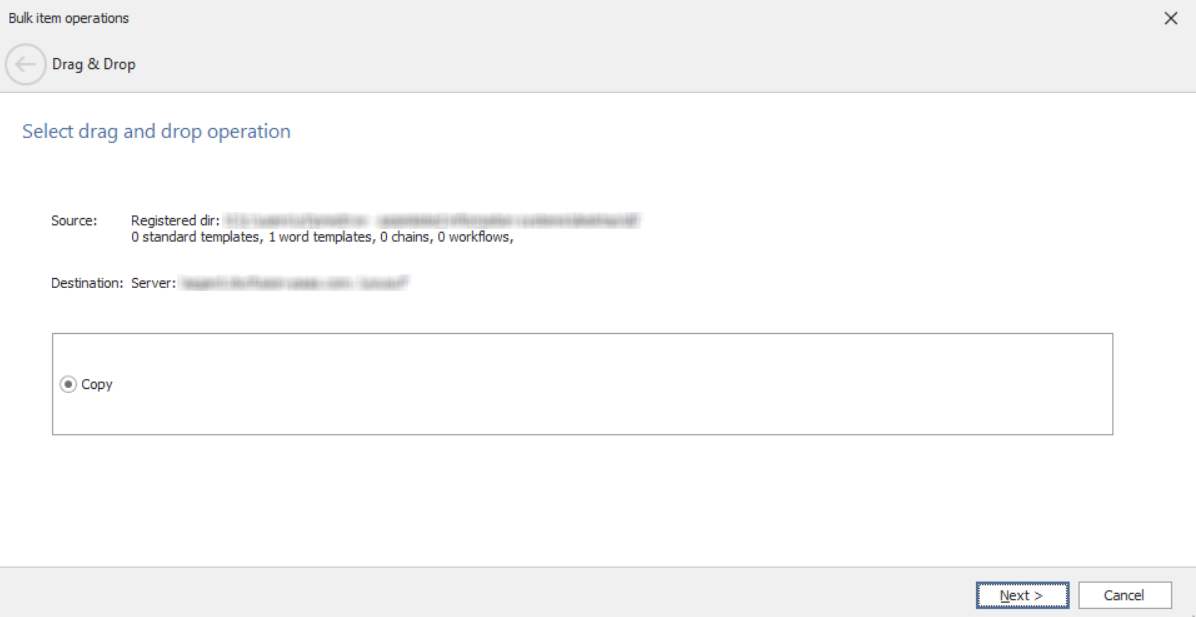
Once again, the wizard asks you to confirm the source, destination and assets being copied. The source should reflect the path of your local repository while the destination points to the server location.
Note that Copy is the only operation you can instruct the wizard to perform when dragging assets from a local repository to an online location.
When you click Next, the wizard advances, and you will be notified of a Duplicate GUID error. This is expected, since the template you're copying from your local repository existed on the server first. Interrogate the error message for more details. You'll find that the wizard is seeking your instruction on what to do with the duplicate template being copied.
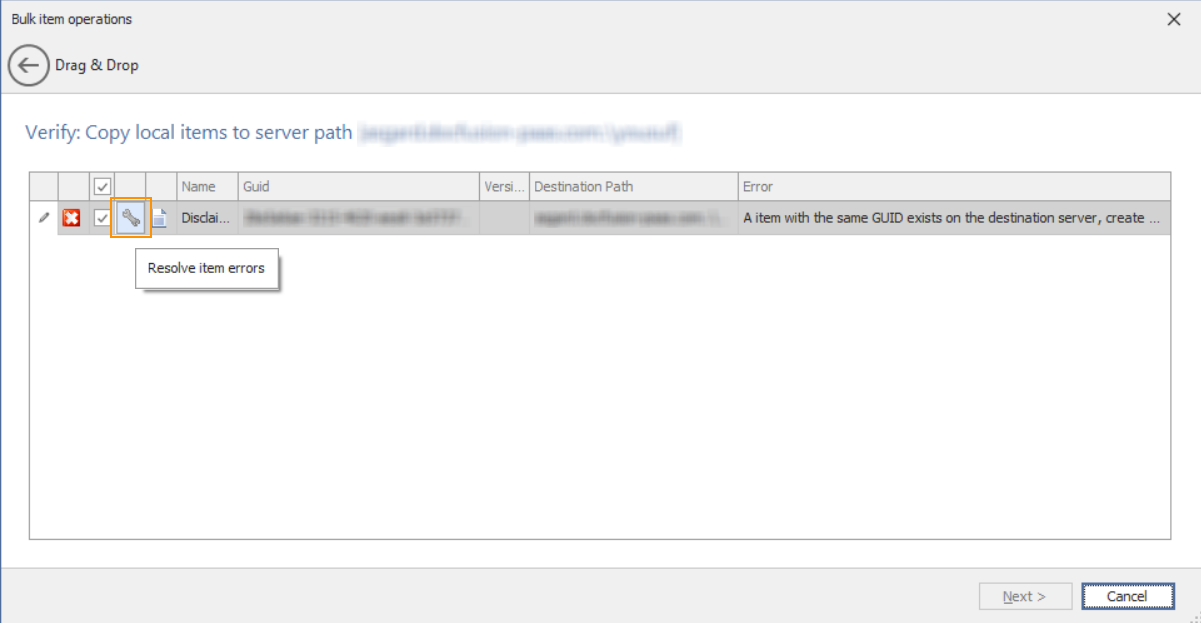
To resolve the duplication error, click the tool icon (4th from left in the row). Doing so, opens the confirmation dialogue:
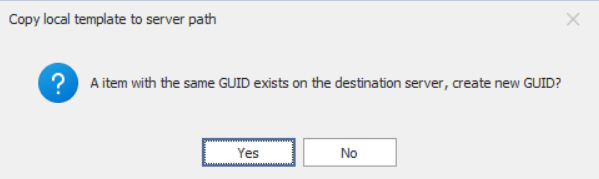
Click Yes to create a new template. This instructs the wizard to create a new template from the one you are copying with its own unique GUID.
Clicking Yes returns you to the wizard where you'll notice that the error has been resolved.
The Next button remains unavailable until you confirm the filename of the template you are copying, so click the tool icon again. This time the Item Name dialog box opens.

Type in a new name for the template and click OK. This dismisses the dialog.
Notice that Next button on the wizard is also now active, so click it to complete the copy operation. A new template will be created on the server with the filename you specified.
If you input the same filename, the existing template on the server will be overwritten with a new version containing the contents of the template you are copying. This is the equivalent of checking a file back in.
Once the copy operation has completed, click Finish to dismiss the wizard.