Outdated file-versions indicate modifications to the file that Workbench hasn't been synchronized to. This is common when collaborating with others on the same automation assets. Getting the latest versions of files is generally recommended before continuing work on them since you risk overwriting any updates that were made.
Follow these instructions to do so:
Scan the file status
In Workbench, navigate to the file you want to work on. Hover your mouse over the File Version icon to verify its version. If you have the latest version already, the label reads "Item Current", and there is no need to update. Otherwise, proceed with the next step.

Get the latest version
When selecting the file object, the Items menu opens. In the ribbon-bar, click Latest. This opens the wizard.
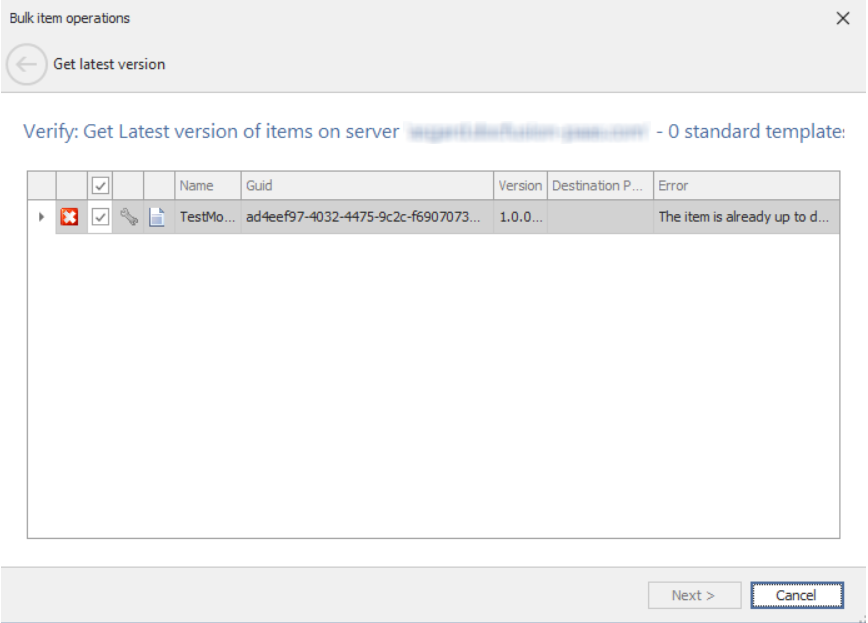
If you already have the latest version, this will be confirmed by the wizard. Simply exit by clicking Cancel. Otherwise click Next to get the latest version.
When the wizard completes the update to the latest version, click Finish.
Notice the File Version icon alongside the file again. When you hover your mouse over it, the latest version should be confirmed with a label that reads "Item Current".