Changes that you make to any automation asset in Workbench creates a new version of that file. The action is triggered by the check-in process, and is always tracked in Workbench's version control system. Until you check a file in, it remains locked. Other users will then only be able to view its contents (read-only mode) but not make any changes.
To check in an automation asset after making changes, follow these steps:
Locate the asset
In Workbench, use the Workbench Items pane to navigate to and select the file to check back in.
When a file is checked out, the Version Control Status icon (third from the left in the row) has a green checkmark and the tooltip reads 'Checked Out'. Verify this state, then proceed to the next step.
Lean more about status icons in this overview...

Check the file in
In the Items menu, click the Check-In command. This opens the wizard to guide you through the process.
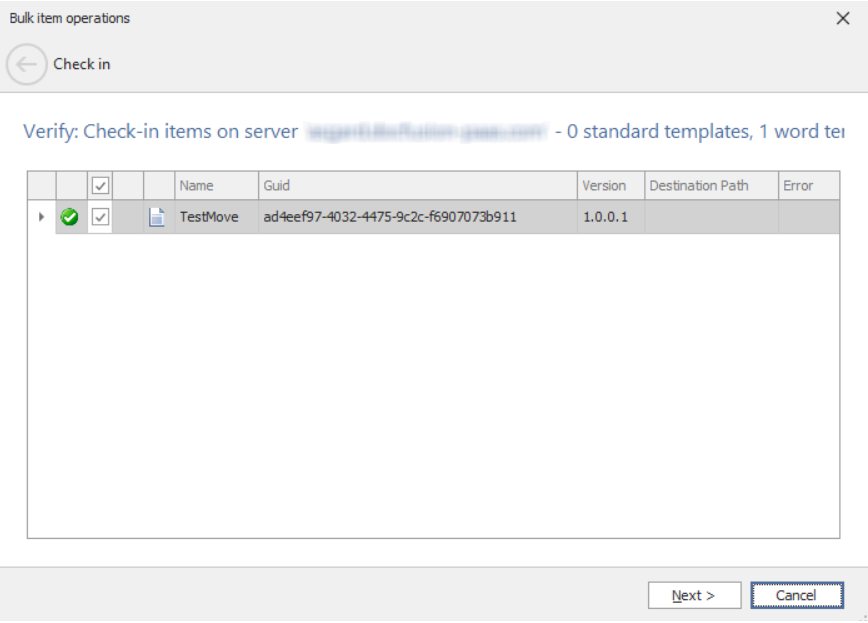
The wizard will notify you of any errors that need attention. If there aren't any that need resolving, and you have verified the file details presented, click Next.
Remember to save and close the file in Template Designer before initiating check-in or the wizard will throw an error.
Arriving at the Version Information step of the wizard presents several options for you to configure:
- Check-in Type (Optional): Are the changes you made to the asset major or minor, an incremental change (build) or a revision.
- Label and description (Optional) : Identifies the version of the file being created during check-in.
- Next Review Date (Optional) : Set a date to review the changes being checked-in. Clicking the dropdown opens the Date Picker.
- Pending Version (Optional) : Enable if you want to mark the changes made in this version of the file as pending.
Click ‘Next’ to proceed with the Check-in.
.png)
Once your file has been checked-in successfully, click Finish to dismiss the wizard.
Verify check-in
Hover you mouse over the Version Control Status icon for any Workbench item to verify that it is checked into the version control system. The tooltip should read 'Not Checked Out'.