Local repositories map to folders on your hard drive where backups of document automation assets, like templates, are stored. They are accessible as Workbench items, and serve as temporary storage while retaining version control features of DocFusion.
To add a local repository, you have to register one in Workbench. Follow the steps below:
Create a Local Repository
Open Workbench.
You do not need to login when creating a local repository.

Next, select the Local Repositories node in the Workbench Items pane, then trigger the Register command in the Repository menu. The Folder dialog opens.
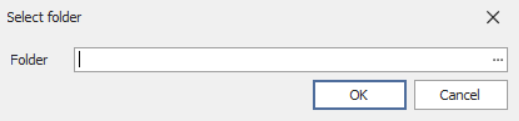
Type a path to a valid local folder in the Folder input or, alternatively, browse locations on your hard drive by clicking the ellipses alongside the field. It opens the Folder Chooser dialog.
When using the Folder Chooser, navigate the tree to locate a folder on your hard drive that will serve as the local repository. You can also click Make New Folder to add a location.
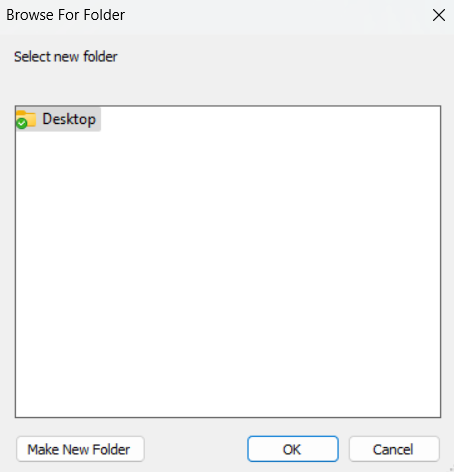
Click OK once you've made a selection. This dismisses the File Chooser and returns you to the Folder dialog where your selected folder will be transferred as a path into the input. Click OK.
The local repository has now been registered. You can use it to work with document automation objects.
Verify the operation
In the Workbench Items pane, twirl open the list of Local Repositories.
Now scan for the repository you just registered in the list. Click it to list the files within in the Assets pane.