| Knowledge Base Article Number | Product |
| KB001277 | Template Designer |
Problem Description
An intermittent issue occurs where the Microsoft Word add-in for DocFusion Template Editor (Template Designer) is deactivated without notice. The DocFusion menu item in Microsoft Word is then no longer visible and the DocFusion ribbon bar is inaccessible.
Root Cause
There are a variety of reasons why Microsoft Office deactivates application add-ins:
- VSTO add-in's are not signed or have a valid certificate.
- The add-in behaves unexpectedly.
- The add-in throws an error or prevents the Microsoft Office application from performing as usual.
DocFusion Template Designer is however signed as a valid VSTO add-in. It has also passed testing without error so this is not a DocFusion specific issue.
Solution
To re-enable the DocFusion Template Editor plugin:
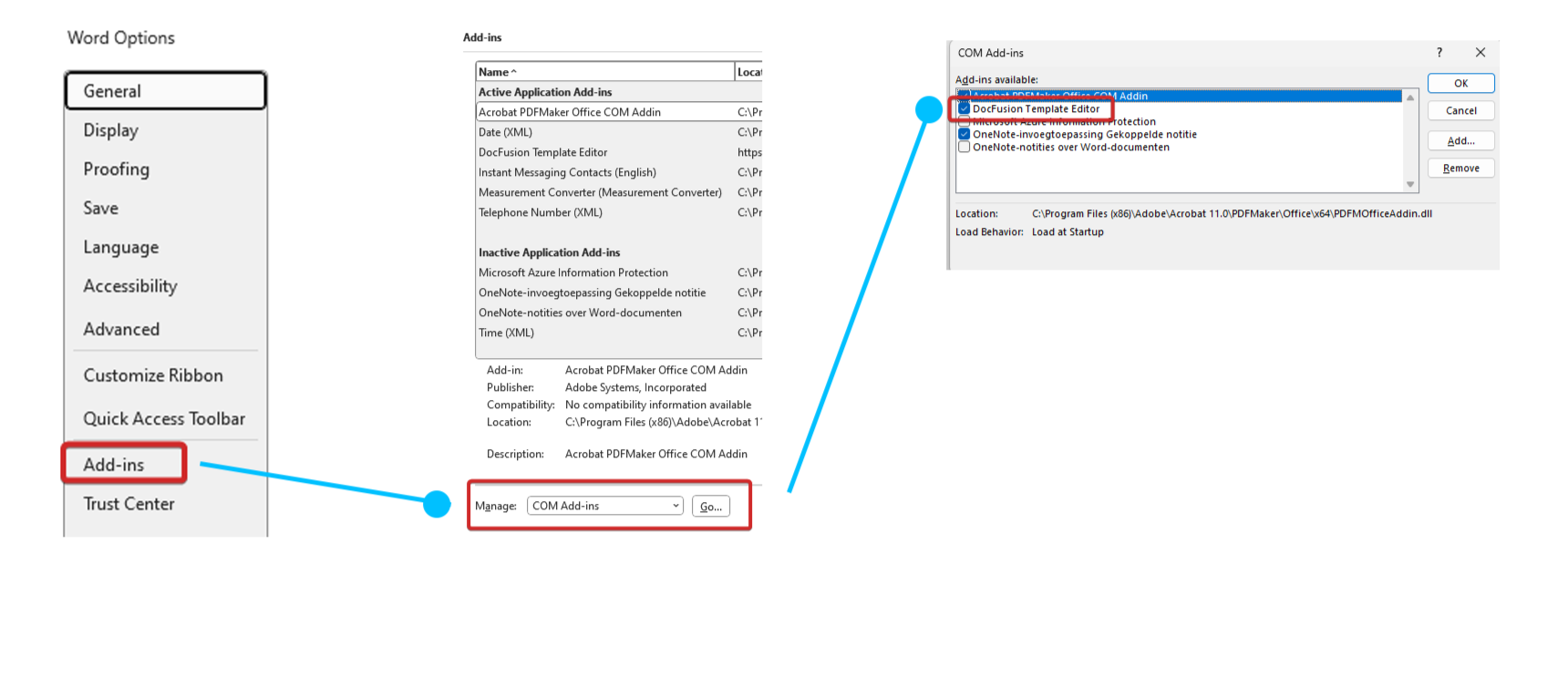
- With Microsoft Word open, go to File -> Options
- Select Add-ins
- In the Manage dropdown (near the bottom) select the COM Add-ins option
- With COM add-ins selected, click Go (button)
- Select "DocFusion Template Editor" and click OK
- You may need to restart Word to load the plugin.
 Additional Resources