| Knowledge Base Article Number | Product |
| KB000719 | DocFusion Template Designer (Microsoft Word Add-in) |
Problem Description
When exporting Snippets, users are unable to view or select destination folders on their local drives other than the Desktop folder. Users can however create folders within the Desktop folder to save Snippets to, but access to any other location on their Windows machines remains unavailable.
The issue occurs when clicking the Import tool in the Data Model window of Template Designer. The Import Wizard that opens allows the editing of Repository Settings (in the Snippets tab), in which users can set the path to the Snippet Repository by clicking the ellipses alongside the Repository Root Path field. When the Choose Folder dialog opens, it doesn't list any other storage locations (like local drives) besides the Desktop folder of the local machine, so no other folders can be selected to save the Snippet to.
This issue seems to occur mainly for users of Microsoft Windows 11 who have Microsoft OneDrive installed.
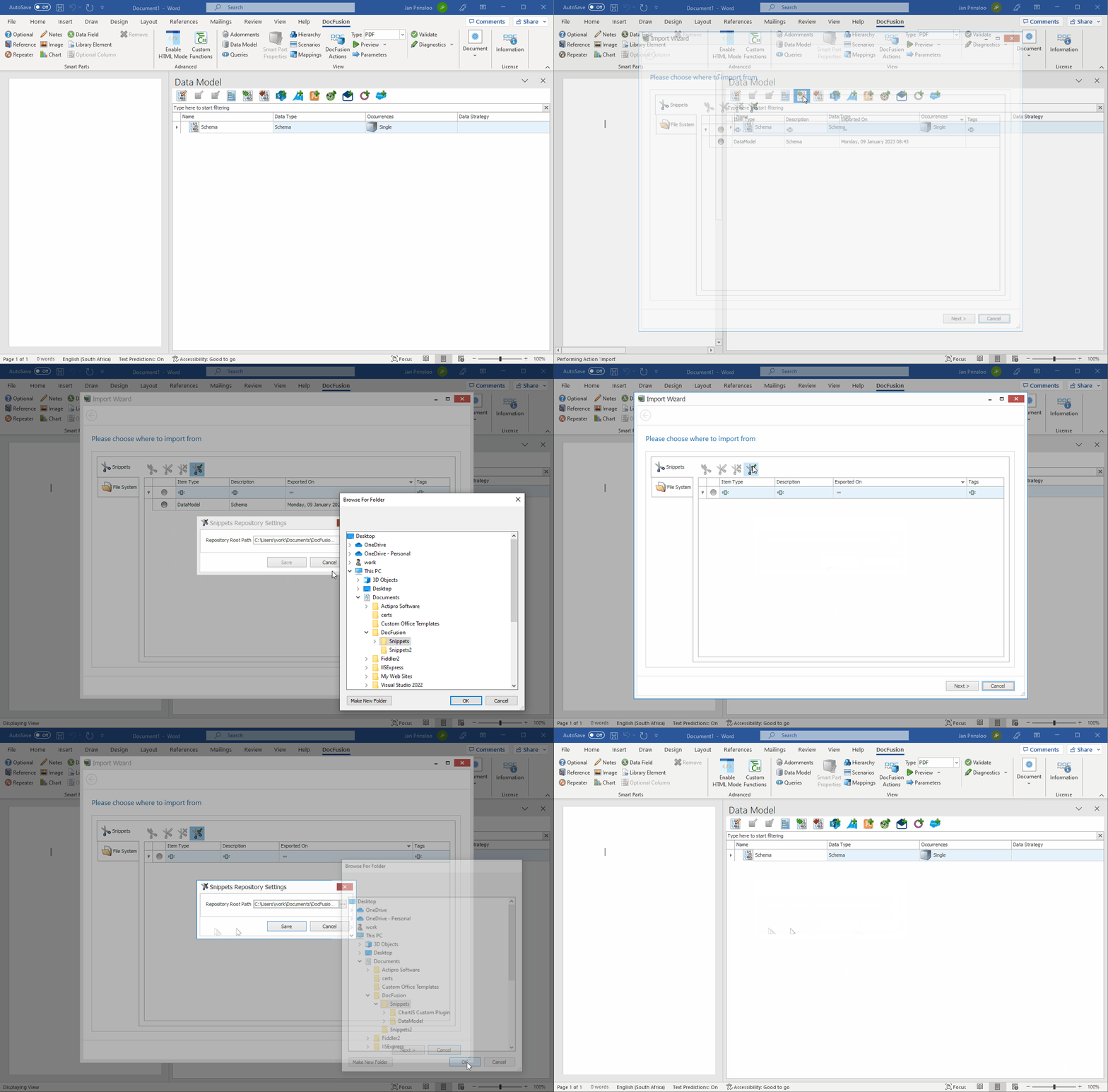 Expected behaviour when selecting Repository Path to save Snippets to.
Root Cause
The source of this issue is Microsoft OneDrive. When the Desktop folder is being synchronized by OneDrive, the list of other storage locations on the local machine are not available in the Choose Folder dialog box.
Solution
No resolution to this issue is currently available from Microsoft. A workaround, however, is available.
Please follow the steps below:
- Right-click the OneDrive icon in the Windows Notification area to open the context-menu, then click Settings.
- Select the Backup tab, and then click Manage Backup. This opens a dialog listing the folders that are currently being synchronized by OneDrive.
- In the Manage Folder Backup dialog, click on the Stop Backup link for the Desktop folder or any other folders that you want to save DocFusion Snippets to
- Click Stop Backup in the confirmation dialog that appears.
Further Actions
No further actions are necessary after using the workaround above.
Additional Resources
This issue has been documented by Microsoft: