| Knowledge Base Article Number | Product |
| KB000314 | DocFusion Workbench |
Problem Description
When attempting to register a new Business Unit using DocFusion Workbench, an error is generated with Error Code: 138 (The Page Failed to Load). You are then unable to continue registering the Business Unit.
The same error (138) also persists when logging in to https://online.docfusion-paas.com using another user profile.
.png) Error Code 138 in DocFusion Workbench
Error Code 138 in DocFusion Workbench
Root Cause
The source of this error is the workstation. Error Code 138 relates to a network status error (net::ERR_NETWORK _ACCESS_DENIED) and describes a condition in which the workstation is unable to connect to the server at the specified URI. It can be caused by a variety of connectivity issues:
- Workstations being disconnected from the network, leading to no online access,
- Organizational policies that restrict the workstation or user profile from accessing the internet,
- Firewalls, virus scanners, or proxy servers that may be blocking connectivity to the internet or access to the specific URI,
- The server URI is incorrect,
- Outdated browser software or a corrupted browser cache.
While error 138 is not related to DocFusion, it arises because the login dialog in the Workbench tool uses WebView technology to present the target Identity Service (IDS). WebView enforces underlying system settings, like policies that control access, and so affects the operation of it's contents. It is a widely-used software component that is common to Chromium-based browsers like:
- Microsoft Edge (replaced Internet Explorer as the default browser on Windows)
- Google Chrome
- Opera
- Safari and others.
Solution
To resolve Error 138, follow these steps:
- Verify that your workstation is connected to the internet.
- Reset your browser security settings, then restart your browser.
- Login to DocFusion Workbench again.
1. Verifying your workstation’s connectivity to the internet
The fastest way to verify your network connection on Windows machines is to run the ‘Network and Internet Troubleshooter’. Right-click the network icon in the notification area, select ‘Troubleshoot problems’, and select ‘Internet Connections’. Follow the prompts to diagnose and reset common network settings during this process.
2. Reset browser security settings, then restart
Resetting Internet Security Settings
To reset security settings in Microsoft Internet Explorer, right-click the network icon in the Windows notification area and click ‘Internet Options’. Alternatively, reach the same settings dialog from within your browser by clicking the cog-symbol in the upper-right corner of the Internet Explorer window and select ‘Internet Options’. Navigate to the ‘Security’ tab. Now click ‘Reset all zones to default level’, and then ‘apply’ to save the changes.
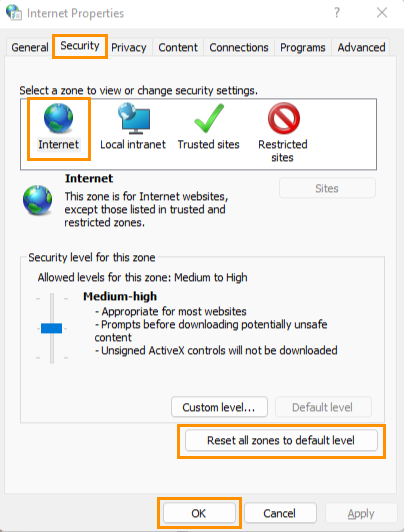 Security settings dialog in Microsoft Internet Explorer
Flushing your browser cache
It is recommended that you also flush your browser cache of historical data. To do so, navigate back to the ‘Internet Options’ dialog by clicking the cog-symbol in upper-right of the browser window. On the ‘General’ tab find a section labelled ‘Browsing History’ and click ‘Delete’.
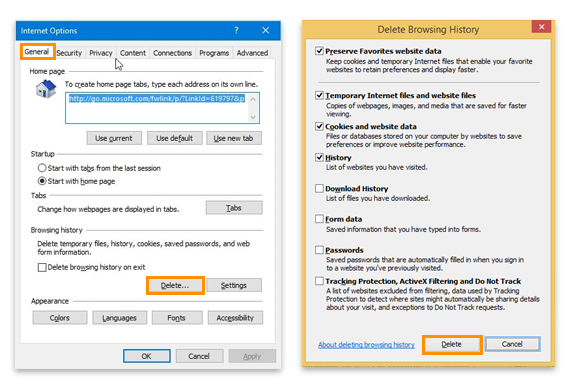 Deleting browsing history in Microsoft Internet Explorer
Restart your browser
Changes to settings will be affected once you restart Internet Explorer. Click the ‘X’ in the upper right-corner of the browser window and then re-start Internet Explorer
Login to DocFusion Workbench again
If DocFusion Workbench is open, close it. Restart the application and login again. Error 138 should be resolved, and you should be able to connect to servers and create Business Units as usual now.
Further Actions (Optional)
Your company’s security policies may not allow you to alter browser settings without the intervention of an authorized systems administrator. In this case, you may share a link to this article with your administrator to complete the steps. Thereafter, login to DocFusion Workbench again.
Additional Resources
If you are using other browsers like Google Chrome, you can follow these guides to reset security settings and flush the browser cache.
- Google Chrome: https://thegeekpage.com/chrome-error-138-err_network_access_denied/
- Microsoft Edge: Some websites can't be accessed - Browsers | Microsoft Docs