Salesforce Connected Apps allow third-party integrations to access data and functionality in SalesForce from other systems. They consist of API's and OAuth authentication to secure the connection between the two systems. Connected apps can also include additional features, such as custom user interfaces, custom logic, and other functionality that isn't native to Salesforce.
To add DocFusion as a connected app in SalesForce, and retrieve your Consumer Key and Secret, follow this guide.
Create the Connected App
Navigate to SalesForce Setup and search for App Manager. Once the list loads, add a New Connected App.
Now, provide the settings. Type DocFusion into the Connected App Name field. The API Name will automatically reflect the same.
Enter your email address in the Contact Email field.
Specify the Callback URL. If you are connecting to DocFusion Online then enter https://online.docfusion-paas.com. If you are connecting to another DocFusion environment, then use a URL that points to it.
Next, set the Selected OAuth Scopes. Give the DocFusion app the following permissions:
- Full Access (Full)
- Manage User Data via API's (api)
- Perform Requests at any Time (Refresh_token.Offline_access)
Here's what a completed configuration should look like:
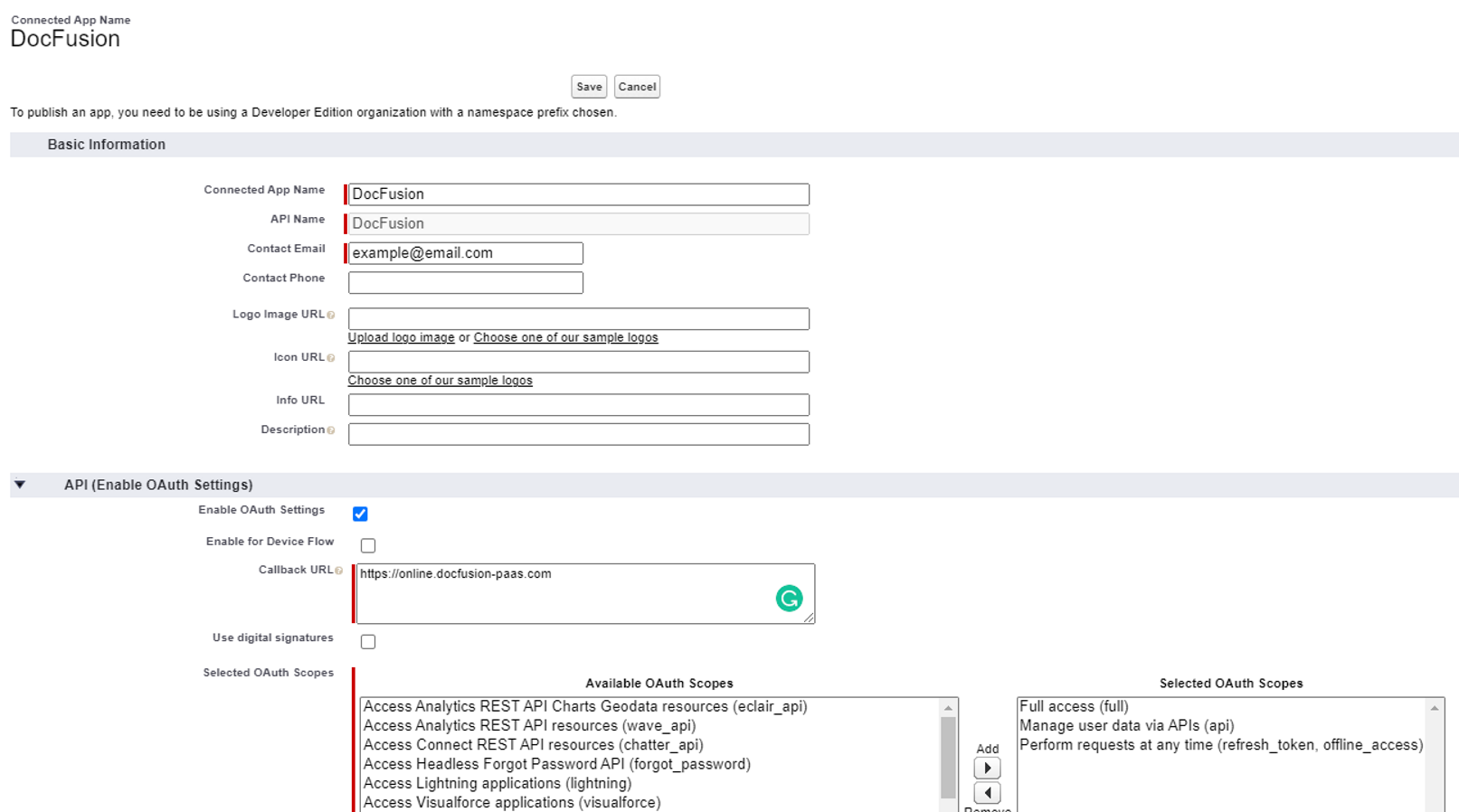 Connected App configuration
Retrieve your Consumer Key & Secret
After creating a new Connected App, SalesForce directs you to the connected app details where the Manage Consumer Details button is visible. Click it.
If you don't see the button, go to the SalesForce settings area, then App Manager. From the list of apps, click on the arrow button at the end of the row that DocFusion is listed in. It opens a context menu from which you should select View.
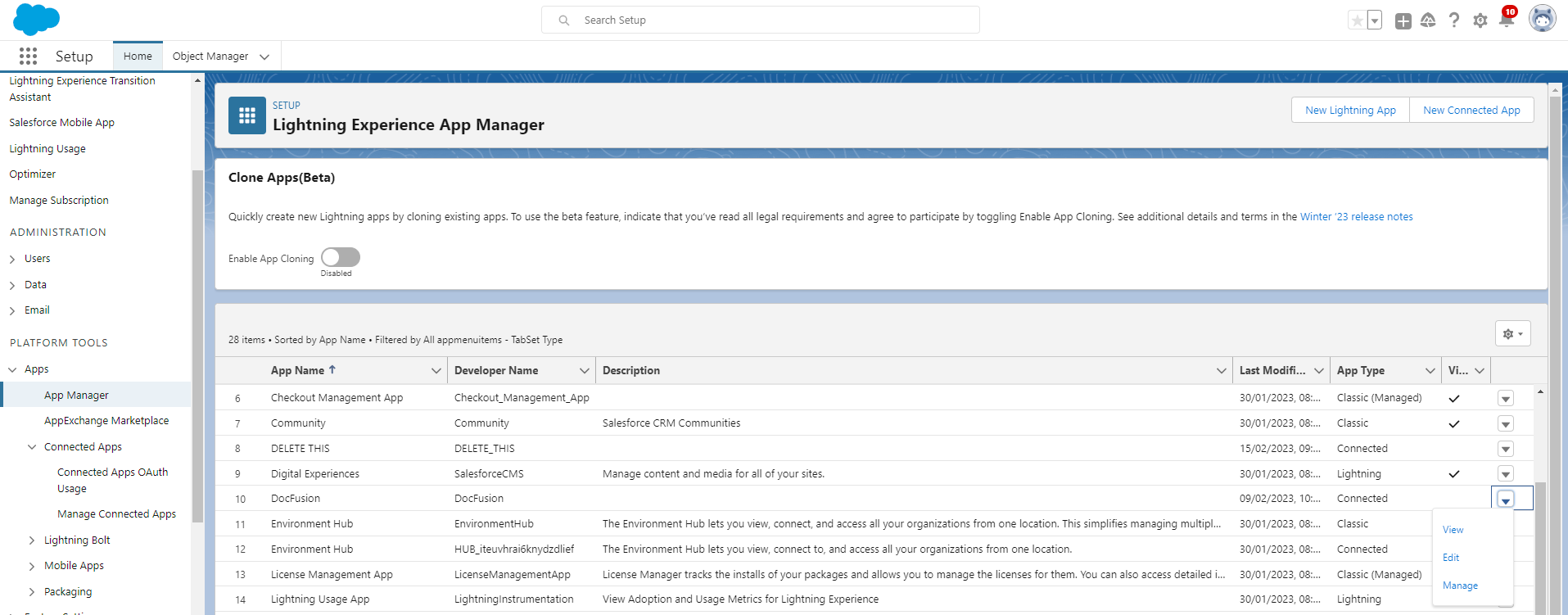 Finding your Consumer Key & Secret using the App Manager
Clicking the View option in the context menu opens the details pane as follows:
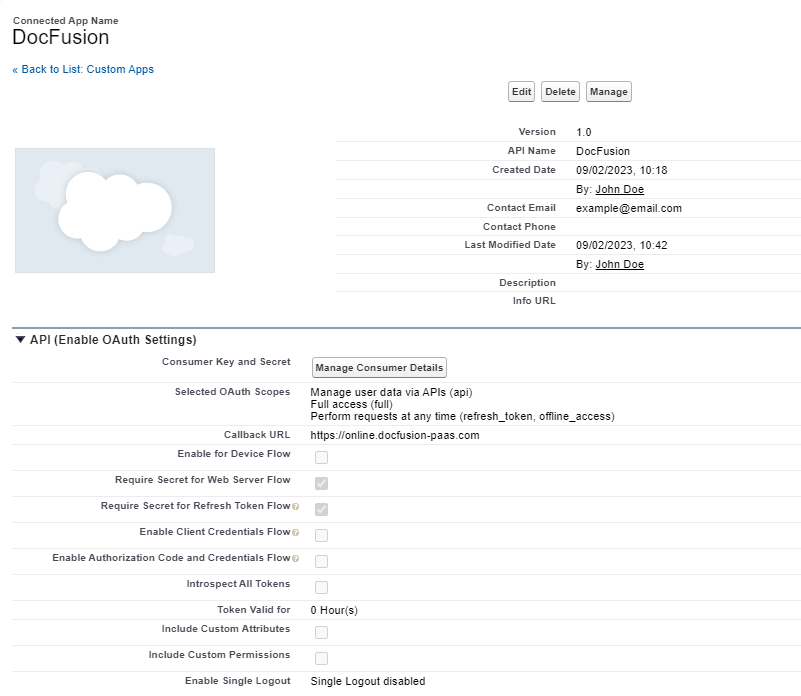 Consumer Keys and Secret's are accessible from the Connected App Details screen
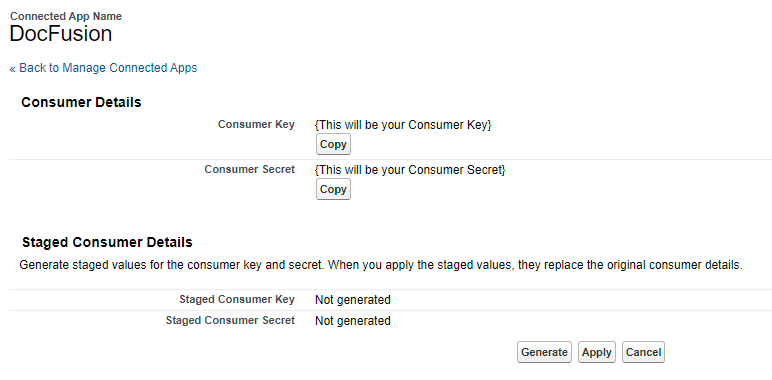
Now, click Manage Consumer Details. Your Consumer Key and Consumer Secret will be displayed. Copy these for use in configuring the DocFusion-SalesForce connector in Template Designer, or in other integrations.
You can also generate new Consumer and Secret Keys by clicking the Generate button (see below). For security reasons, the generated values will be sent to the email address you specified in the Contact Email field when creating the Connected App.