When configuring culture settings for a DocFusion template, culture settings for your business unit will be overridden. This is because culture settings in DocFucion follow an order of precedence to give you flexibility in how you implement them.
By default, DocFusion inherits date-time and number formatting from the ISO specification of the culture that you select. You can customize any of these settings to suit the input data from data sources in your template's data model. Any settings that haven't been customized will continue to use their standard ISO definitions.
In this guide, you'll learn how to select template-specific cultures, and customize their date-time or number formats.
Steps
1. Access template culture settings
First, open DocFusion Template Designer and ensure that your template has been extended for dynamic generation.
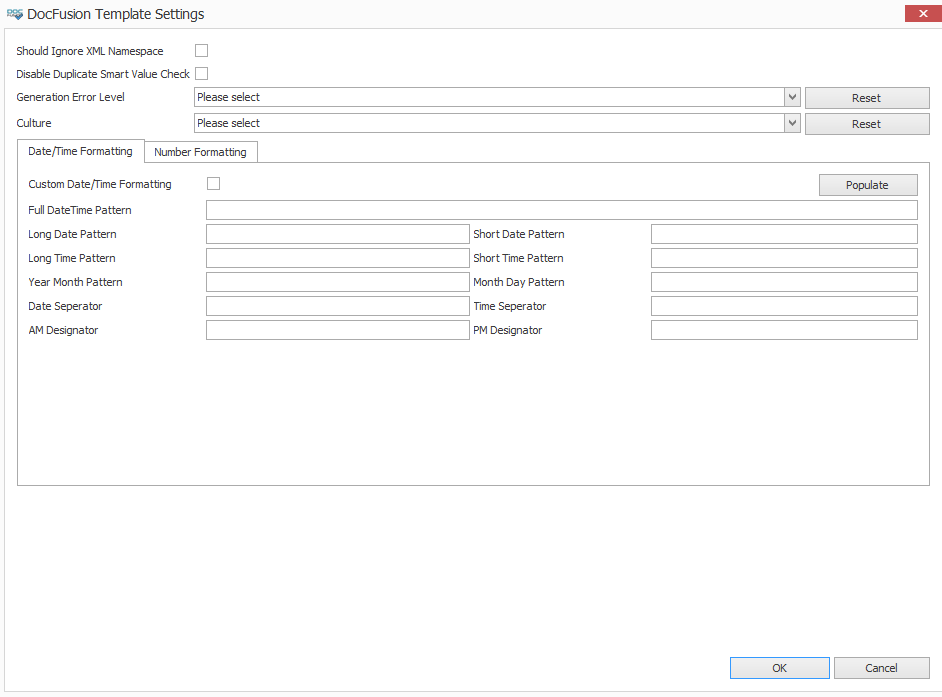
Now, navigate to the DocFusion ribbon-bar in Microsoft Word's menu and click the Settings command. This opens the DocFusion Template Settings dialog.
If a culture has been previously set for your template, it will be selected in the Culture field. You can default it to the locale settings for your business unit by clicking Reset. Alternatively, proceed to the next step to customize your culture settings.
2. Select the culture
The Culture dropdown presets a list of ISO standard cultures. Select the one that you would like to use. The ISO codes and descriptions alongside will help you to identify the correct one. Any culture selection you make can be customized, though that is optional.
Once you've selected a culture, click the Populate button. It displays all the standard ISO date-time and number formats associated to the culture that you have selected in their respective fields.
If you simply want to continue using the standard ISO culture specification, then click OK. This dismisses the dialog, and your chosen culture will be used for determining formats for input data to your template.
If, however, you wish to customize the standard ISO specification, then proceed to the next step.
3. Customize formats
Always click the Populate button before customizing any settings to ensure that the standard ISO definitions are used as a fallback for fields that you don't customize.

To Customize Date/Time Formats:
First, ensure that the Date/Time Formatting tab on the DocFusion Template Settings dialog is selected.
Now, instruct DocFusion to override default format settings by enabling the Custom Date/Time Formatting checkbox. This enables the fields for input.
Now edit any of the date/time settings as needed. You need not customize all of them, but it is important to note that fields without values assigned will generate as blanks in your document. To ensure this doesn't happen, always click the Populate button before making any customizations. This defaults the values that you don't customize to the standard ISO definitions for your selected culture.
To Customize Number Formats:
Navigate to the Number Formatting tab on the DocFusion Template Settings dialog.
Now, instruct DocFusion to override default settings by enabling the Custom Number Formatting checkbox. This enables the fields for input.
Now edit any of the number settings as needed. You need not customize all of them, but it is important to note that fields without values assigned will generate as blanks in your document. To ensure this doesn't happen, always click the Populate button before making any customizations. This defaults the values that you don't customize to the standard ISO definitions for your selected culture.
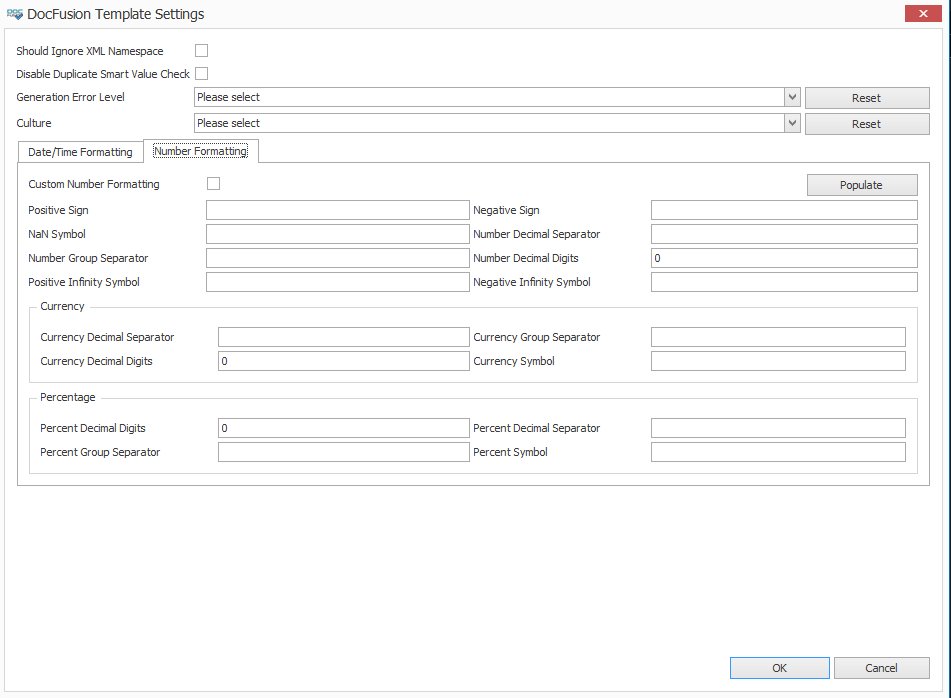
Once you're done, click OK to save and apply your customizations. This dismisses the DocFusion Template Settings dialog.