The DocFusion connector for Microsoft SharePoint connects to and sources data from SharePoint lists. Once configured, the data source is then added to the template's data model. Multiple SharePoint data sources can be added to the template data model.
Add the SharePoint property
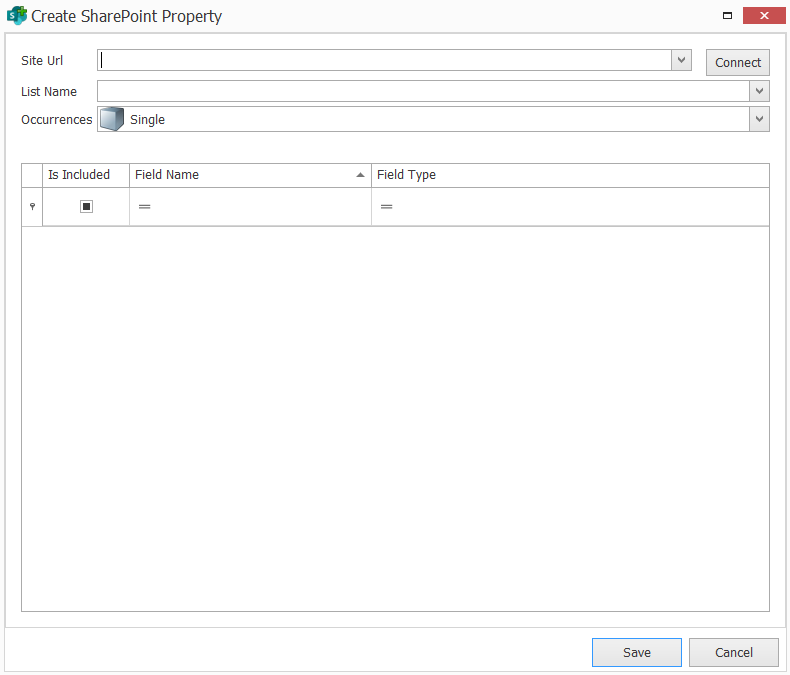
Open the template's Data Model then click Create SharePoint Property in the toolbar. This opens the connector dialog.
Authenticate
Connect to the SharePoint server by specifying the Site URL and clicking Connect. The authentication window opens.
Select the Authentication Type then provide the necessary details to connect. E.g.: Basic authentication requires a valid username and password.
Next, click Login. It may take a few moments to establish a connection. You will then be returned to the connector dialog.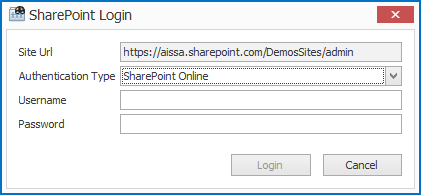 SharePoint Login Authentication
A status icon alongside the Site URL indicates the success or failure of your server connection, along with a relevant error message if any.

Configure the data source
Select the SharePoint List Name. Your selection populates the list of available fields in the table below.
Next, specify the Occurrences. Select Single when expecting only one row of data to be returned, and Multiple for a set of rows to be returned as a dataset.
Now, use the Is Included checkboxes in the table to select those data fields that you would like import to your template's data model as properties in the data model.
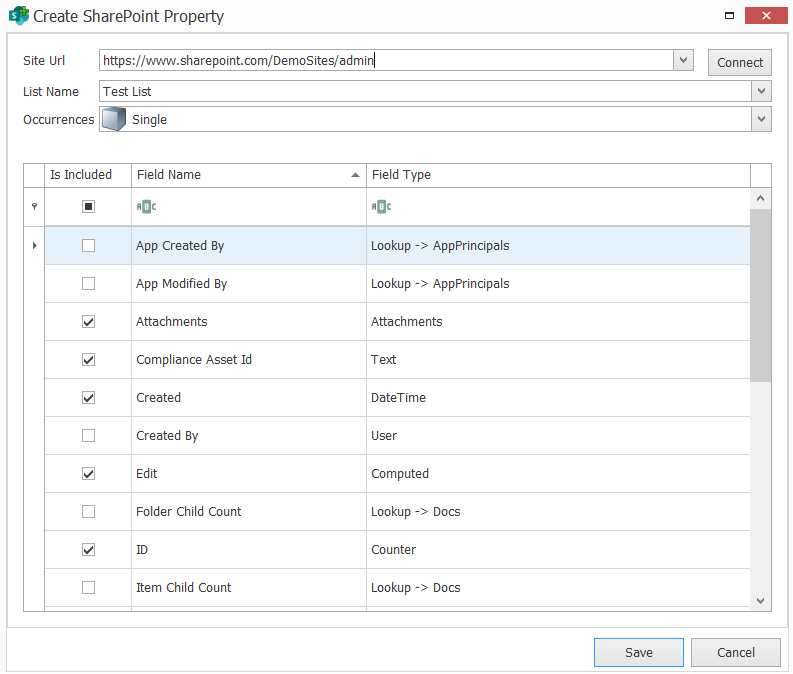
When you're done, click Save. You will be returned to the Data Model pane where you can verify that the selected data fields were added to the template's schema.