Connecting document templates to a DocFusion repository via cached proxy allows external references and library element smart parts within the template to function and preview correctly. Changes made to the template still need to be checked-in to Workbench's version control to be made available for document automation.
NOTE: Proxy connections have session scope. This affects how document templates are previewed and saved. For more information, see: Working with external references without Workbench.

Establishing proxy connections
Open a DocFusion template stored in your local repository using Template Designer.
In the DocFusion ribbon bar, click Settings to open the Template Settings window and navigate to the Cached Repository section.
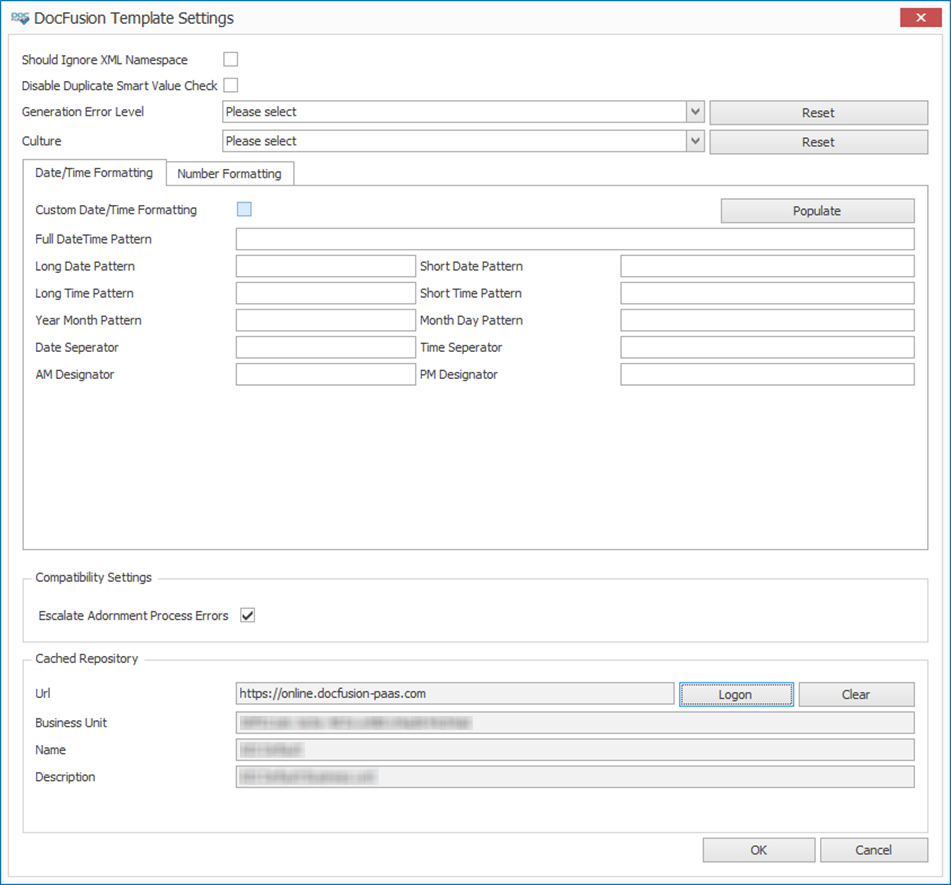 Template Settings
Enter the URL of your DocFusion server into the input provided.
The DocFusion online URL is https://online.docfusion-paas.com
Now, click Logon. You will be prompted to enter your logon credentials. If your user account has AAD (Azure Active Directory) enabled, click 'Continue with Microsoft' to authenticate. Otherwise, authenticate via DocFusion IDS (Identity Services) by providing your username and password.
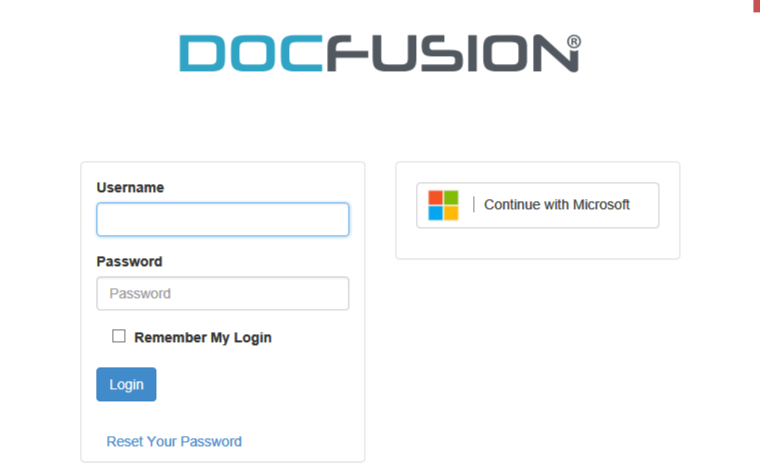 Login dialog.
Next, select a Business Unit. The dropdown lists only business units that your user account has access to.
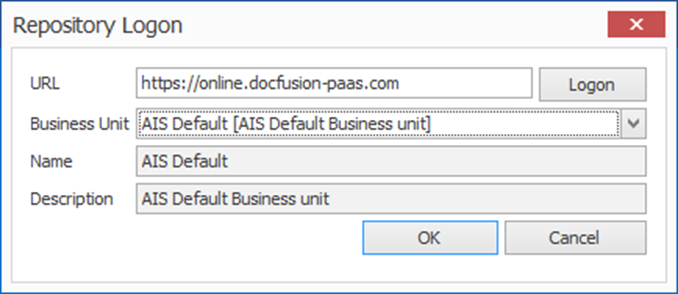 Select a business unit
Verify that you are connecting to the correct business unit using the Name and Description that are displayed once you select a business unit. These are not input fields, and require no configuration.
Now, click OK to complete establishing the proxy connection between the repository and the template.