The Find/Replace command in DocFusion Actions helps to quickly convert text in document templates to Data Field smart parts. You can search using several methods, and select the text that you want to replace with Data Fields.
Performing searches
Open DocFusion Actions from the ribbon bar, then click the Find/Replace command. The search dialog opens as follows:
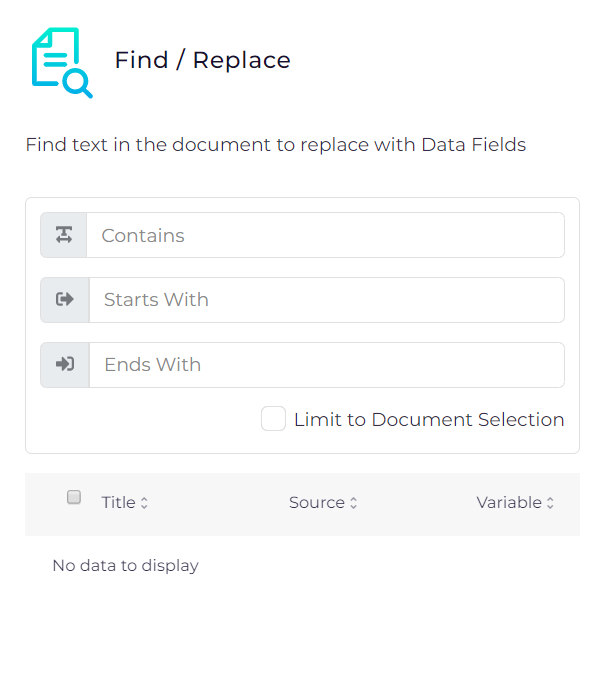
Search for text in the document using any of the available methods:
- Contains: Returns any document text that contains the search string in part or whole.
- Starts With: Returns any document text that begins with the search string.
- Ends With: Returns any document text that ends with the search string.
Limit the search range to selected text in the document by enabling Limit to Document Selection.

Once you've entered the search criteria, hit Enter to perform the search.
Search results
The results are displayed in the table below, with suggested details for the Data Field to create:
- Title: The suggested name of the Data Field that will be created.
- Source: The suggested data source for the Data Field.
- Variable: The suggested name of the schema property that will be created and bound to the Data Field.
- Type: The suggested data type for the schema property bound to the Data Field.
- View: Clicking this tool highlights the text on the document canvas.
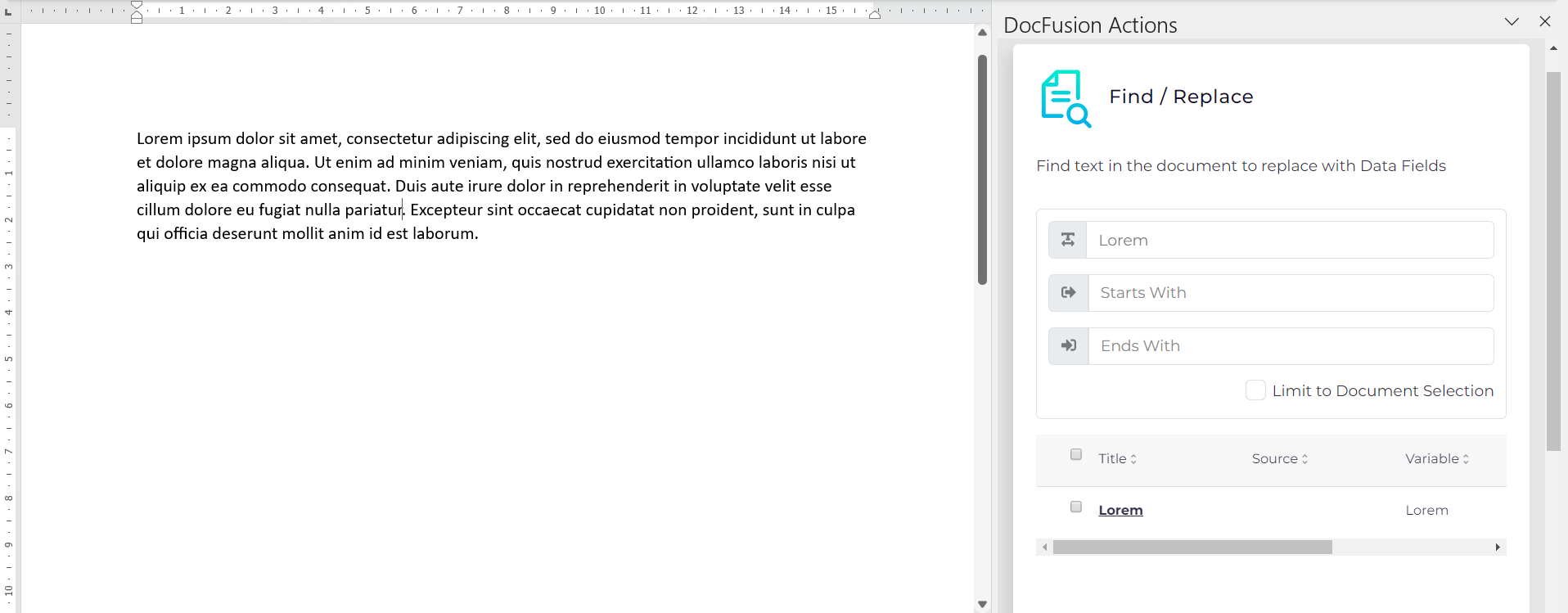
Search only returns text. Smart parts that contain the search string are omitted from results.
Converting text to Data Fields
Use the checkboxes in the results table to select the text in the document template that you want to covert to Data Fields, then click the Replace Selected button. Data Fields will be created for all of your selections.